
Many companies are passing up the benefits of APIs out of fear of the high costs associated with implementing IT systems. In fact, all you need to bulk-download data from public registries (such as the National Court Register) via an API is Excel.
With Power Query, you can connect your spreadsheet directly to MGBI resources, turning a simple list of KRS numbers into a comprehensive database of business partners—without writing a single line of code.
In this guide, we explain how to use this solution to gain broad access to data from numerous public registries.
You can find a list of data sources available through the MGBI API at:
👉Public Registers API
See also the technical documentation for the Public Registers API:
👉 Technical Documentation - Public Registers API
1. Preparing a list of identifiers
The first step is to create a column in the spreadsheet containing the identifiers of the entities you want to check (e.g., KRS numbers).
Give the column a clear heading, such as "KRS Number," and enter the numbers as text values. This will help you avoid formatting errors (such as leading zeros being omitted).
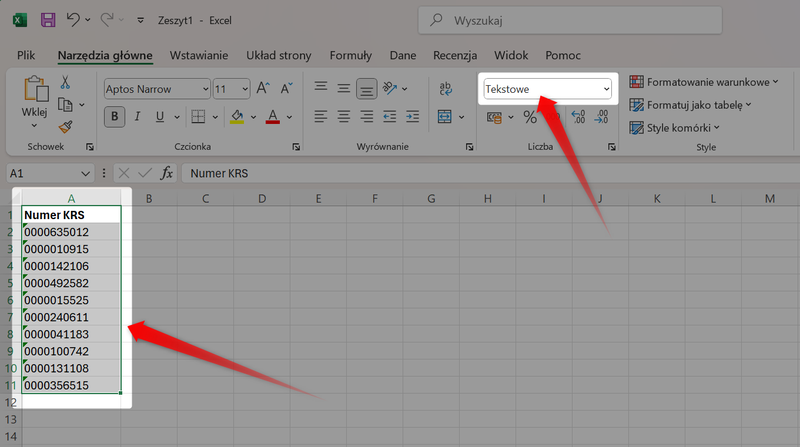
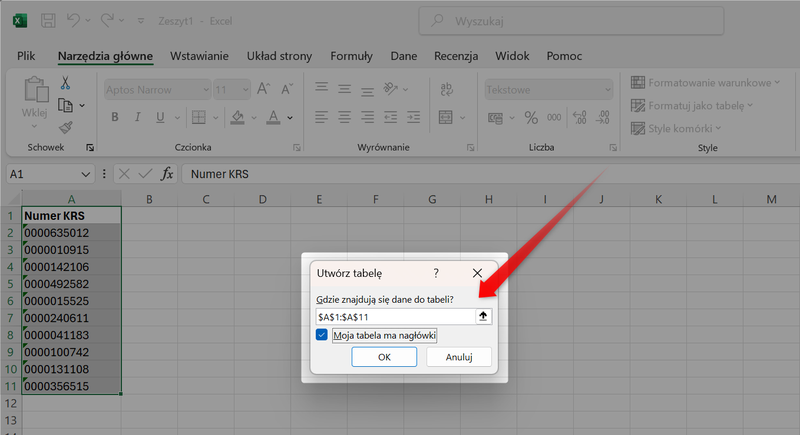
Next, select the data and press Ctrl + T on your keyboard. Then click "OK" to create the table.
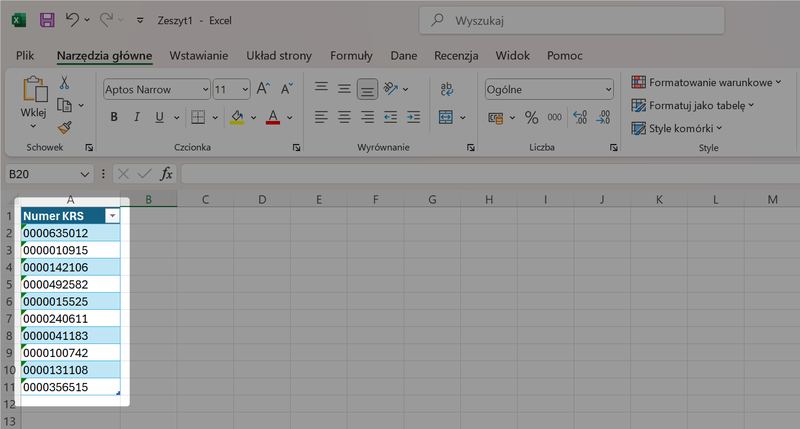
The table view will change, which can be taken as confirmation that the previous steps were performed correctly.
2. Import into Power Query
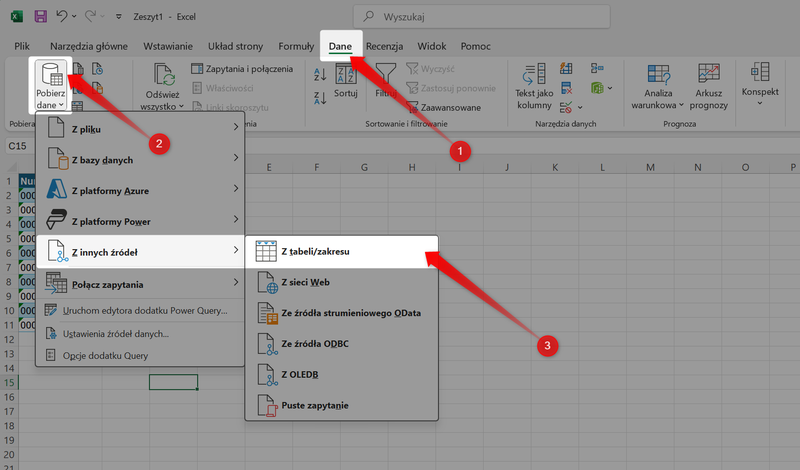
Select the table and go to the Data tab. Select the option Get Data → From Other Sources → From a Table/Range.
The Power Query Editor will open—this is where you can connect to the MGBI API.
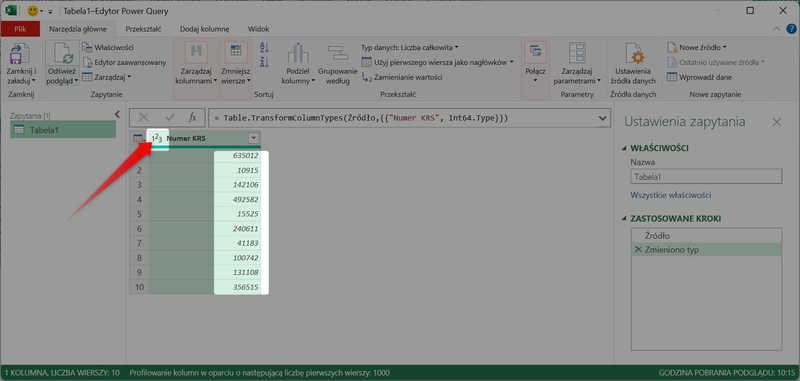
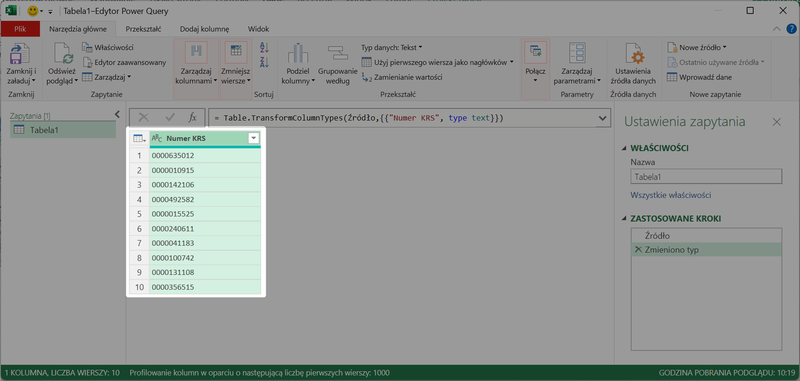
Make sure the data type of the column containing the KRS numbers is still set to "text." If the program has changed it to "numeric," change it back so that API queries are valid.
In the table header, click the "123" icon.
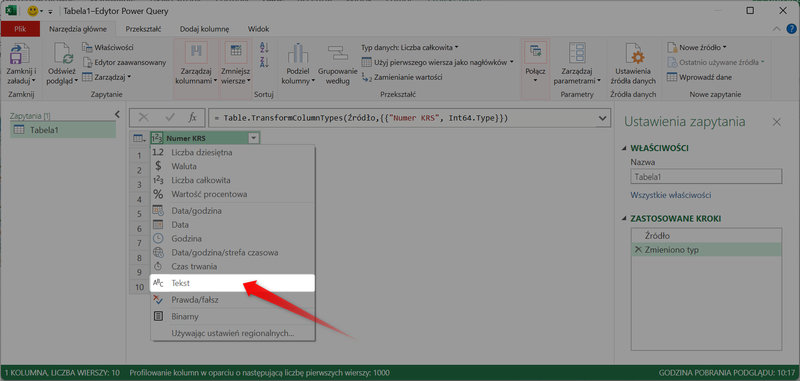
From the drop-down list, select "Text".
The data will be refreshed, and the KRS numbers will then be displayed correctly.
3. Query Configuration
The next step is to add a function in the Power Query Editor that will send a query to the MGBI API for each row (KRS number) in your table.
Go to the " Add Column " tab and select " Custom Column."
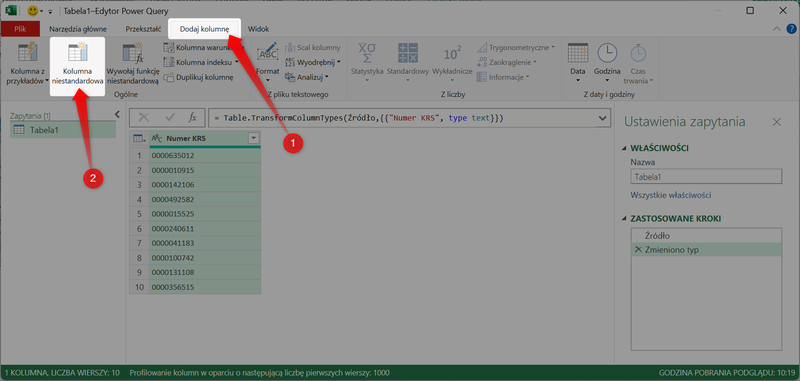
A new window will appear.
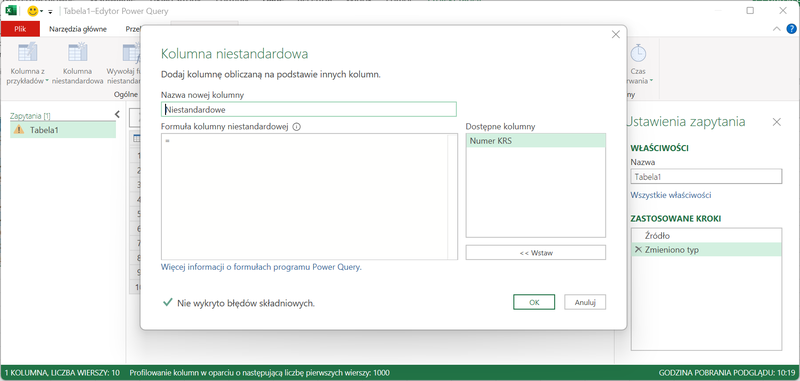
In the Custom Column Formula field, paste a query that uses the Json.Document and Web.Contents functions.
Example formula:
GET /v1/models/pl-krs-rdf-record/records?identifiers.pl_krs=[KRS number] HTTP/1.1
Host: api.mgbi.pl
Authorization: [authorization key]
The & symbol will automatically insert the appropriate number from your list into the API endpoint URL. After entering the formula, click the "OK" button.
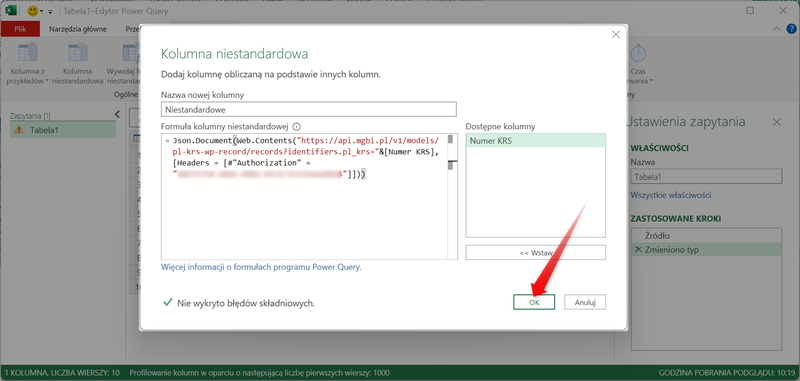
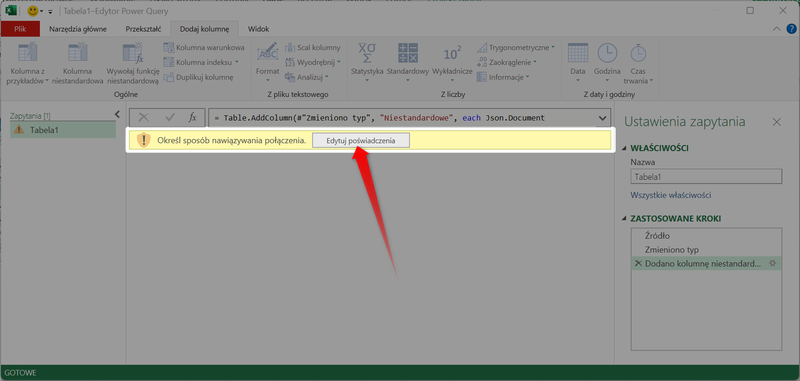
A message will appear at the top of the page. Click " Edit credentials" to continue.
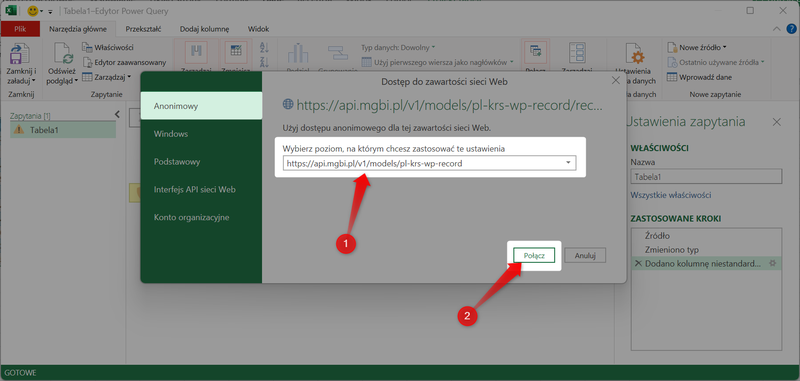
In the new window, verify that the selected level corresponds to the API endpoint address from which you want to retrieve data, and then click the Connect button.
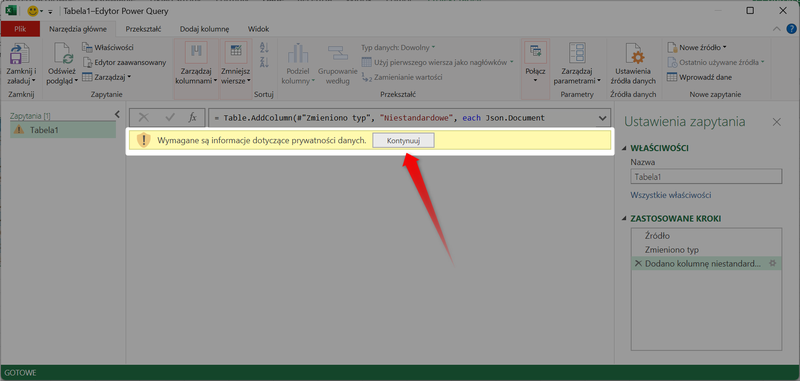
Another message will appear. Click Continue.
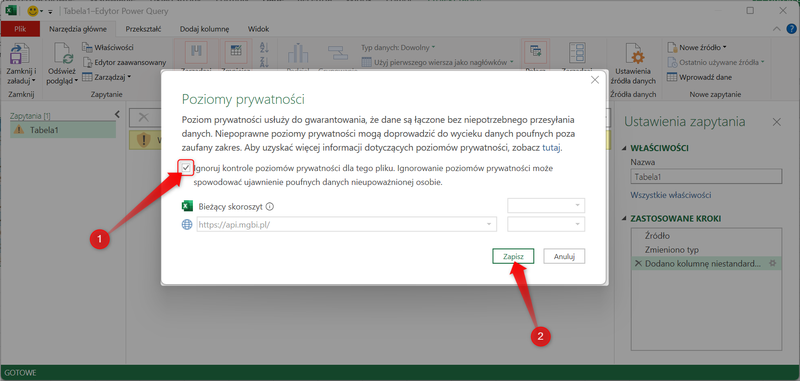
Select the "Ignore privacy level checks for this file" option to allow data to flow freely. Finally, click the Save button.
4. Unpacking and selecting data
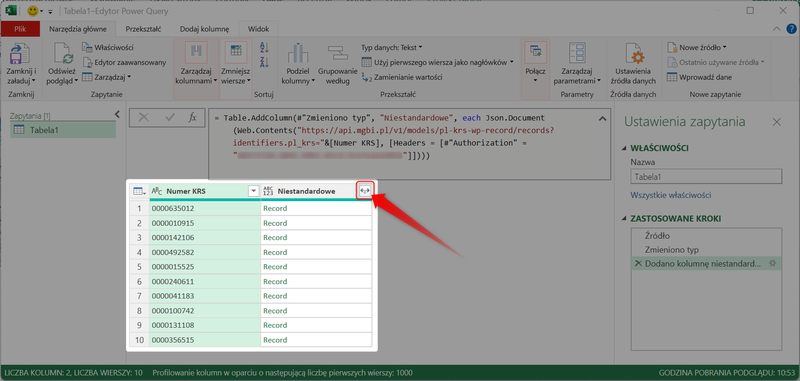
In the new custom column, you'll see values of the Record or Table type. Click the double-arrow icon in the column header to "expand" the data.
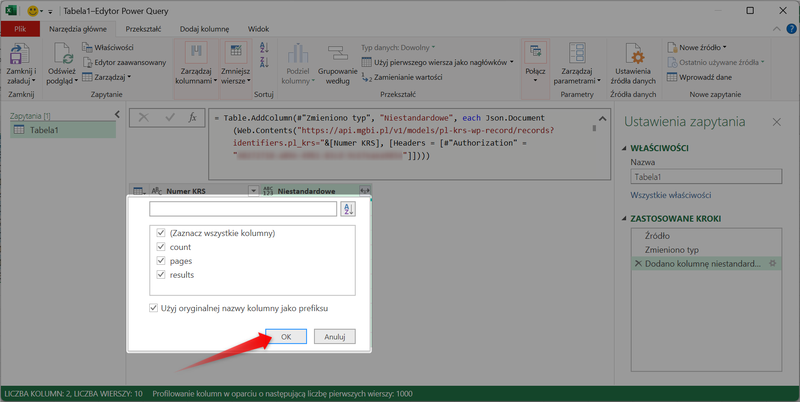
Select all options: count, pages, results. Then click the "OK" button.
Click the two-arrow icon in the header of the custom column again.
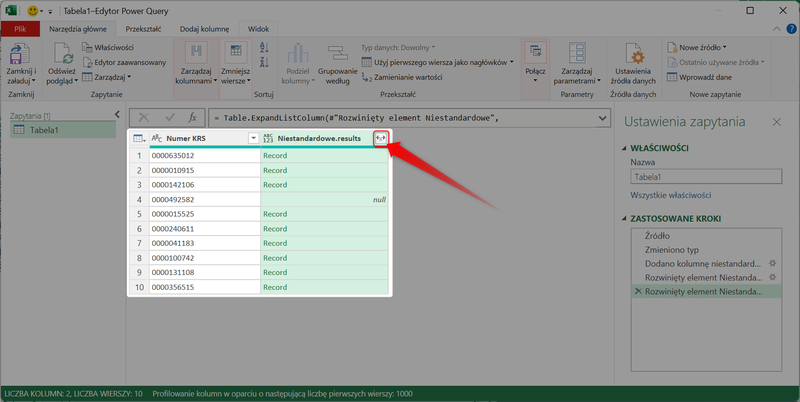
Now you can select the range of data to include in your file. Then click "OK".
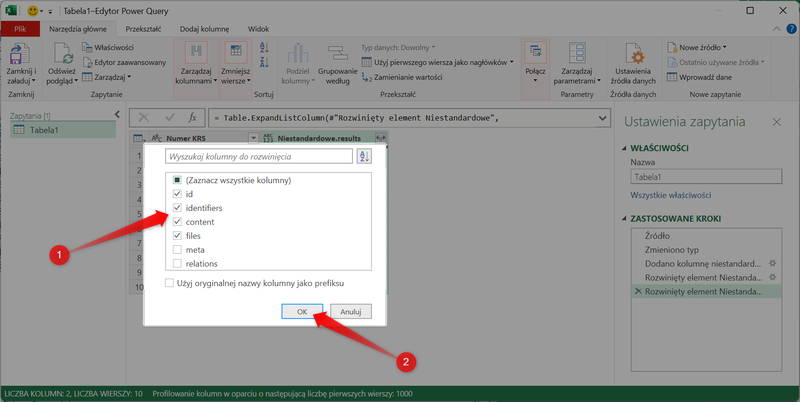
Continue in the same way until the table preview contains all the data you want to import into your spreadsheet.
5. Updating data in the spreadsheet
Once the table looks the way you planned, select " Close and Load."
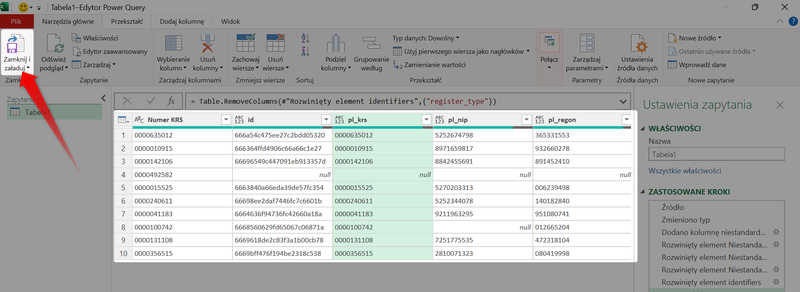
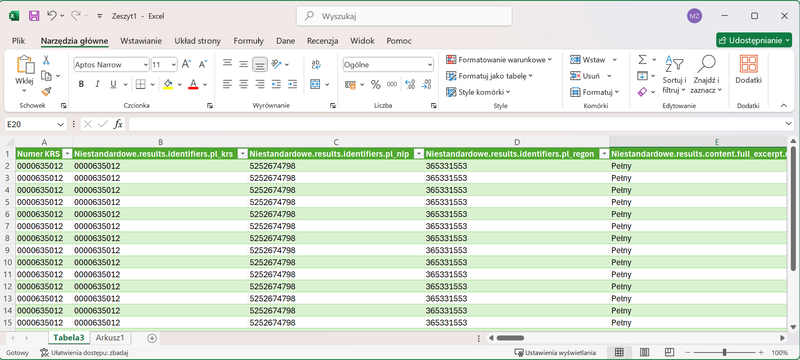
The prepared data will be inserted into your spreadsheet as a new tab called " Table."
Information about businesses available in public registries, such as the National Court Register (KRS), is subject to frequent changes (e.g., changes in the registered office address, the composition of the management board, or the amount of share capital).
To make sure the information in your spreadsheet is up to date, go to the Data tab and select Refresh All.
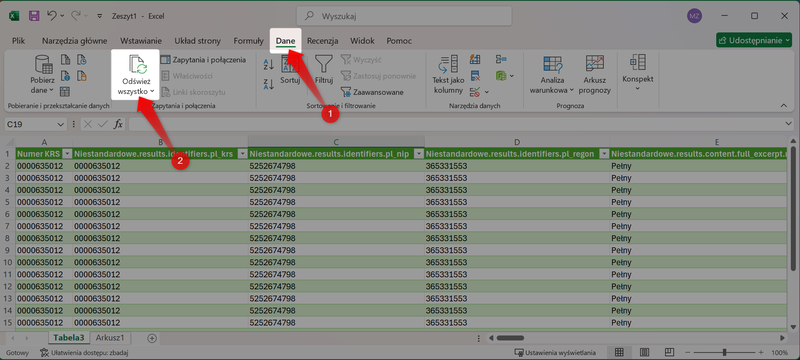
Excel will connect to the MGBI API, retrieve the latest records, and overwrite the old data in your spreadsheet.
With this solution, your database is always ready to go, and you save time by avoiding the need to manually check each entity individually.
6. Adding new entities
If you want to add more entities to your file, you don't need to create a new query.
Go to the source table containing the KRS numbers and enter the new identifier directly in the next empty row below the table.
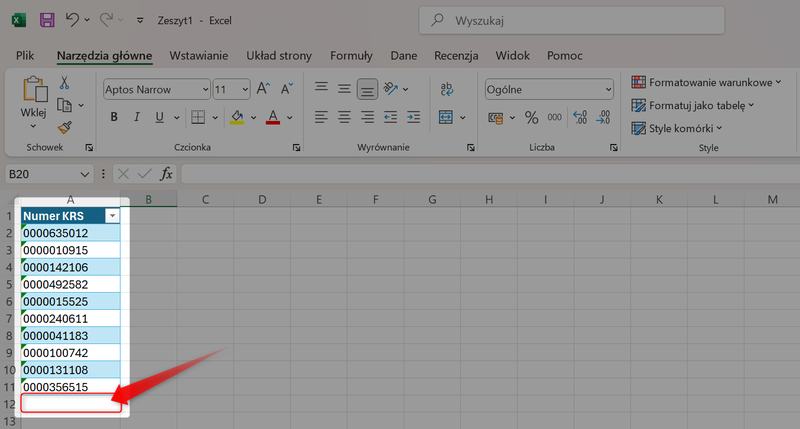
Because you used the Ctrl + T shortcut earlier, Excel will automatically recognize the new entry and "stretch" the table range to include it.
Please note that the new KRS number must also be entered as plain text for the API request to work correctly.