
The Business and Contact Directory operates on a prepaid (wallet) basis. This means that in order to generate reports, there must be sufficient funds in your account.
Every account top-up adds funds to your wallet that can be used for future transactions.
Account Activity Rules
The funds in your wallet are used both to pay for the statements generated and to keep your account active.
Account Activation
A deposit of at least 50 PLN (net) into your wallet will automatically activate your account. From that point on, you will be able to use all the features of the service, including generating reports (downloading files).
Billing method
At the end of each monthly billing period, the service verifies the value of your orders and your current account balance.
The next steps depend on the following scenarios:
➡️ Billing for the previous period
A fee will be charged if:
- No files with a total value of at least 50 PLN (net) have been generated in the last 30 days,
- The account balance allows for the collection of a fee (the difference between 50 PLN and the value of the bases from the previous month).
➡️ Account blocked due to insufficient funds for the new period
Your account will be automatically blocked (deactivated) if:
- the account balance is less than 50 PLN net – this applies regardless of the value of the files generated last month.
To reactivate your account, you must top up your wallet with a minimum amount (50 PLN net).
➡️ No system activity
The service will not take any action (no suspension and no fee) if:
- files with a total net value of at least 50 PLN have been generated in the last 30 days,
- The account balance is more than 50 PLN net.
✅ Example 1:
- You top up your account with 50 PLN.
- You spend 36 zł on statements each month.
At the end of the billing cycle, the service charges your account 14 PLN to bring the total to the minimum monthly fee (50 PLN).
✅ Example 2:
- You top up your account with 100 PLN.
- You spend 72 zł on statements each month.
Since this amount exceeds the minimum monthly fee, the service does not charge any additional fees.
You can check your wallet balance and the date of your next fee at any time in the "Account"tab, under the "Wallet"section, or by hovering your mouse over your account balance in the top-right corner of the page.
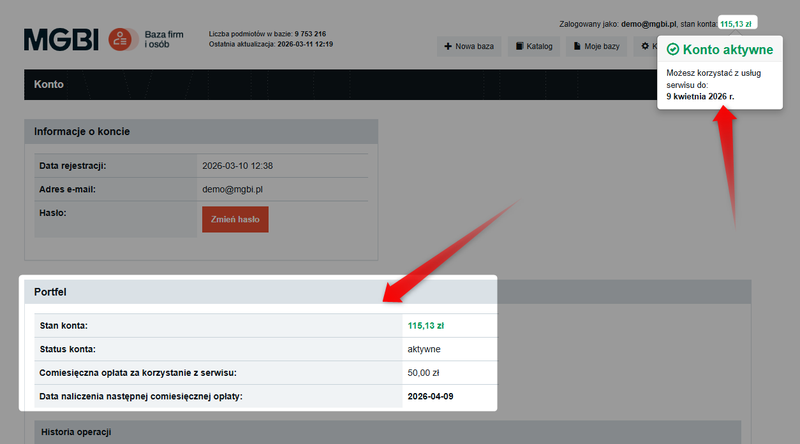
Step 1: Go to your wallet
There are two ways to access your wallet:
- From the main menu—via the "Account" tab.
- Before creating a new report.
1️⃣ Top up via the "Account" tab
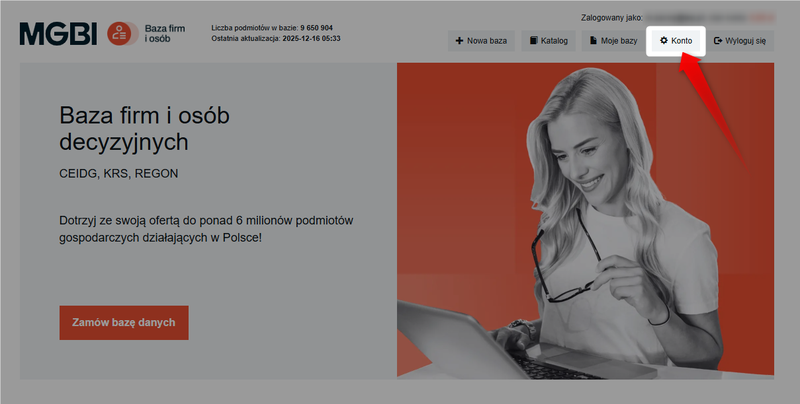
In the top menu, click the "Account" button:
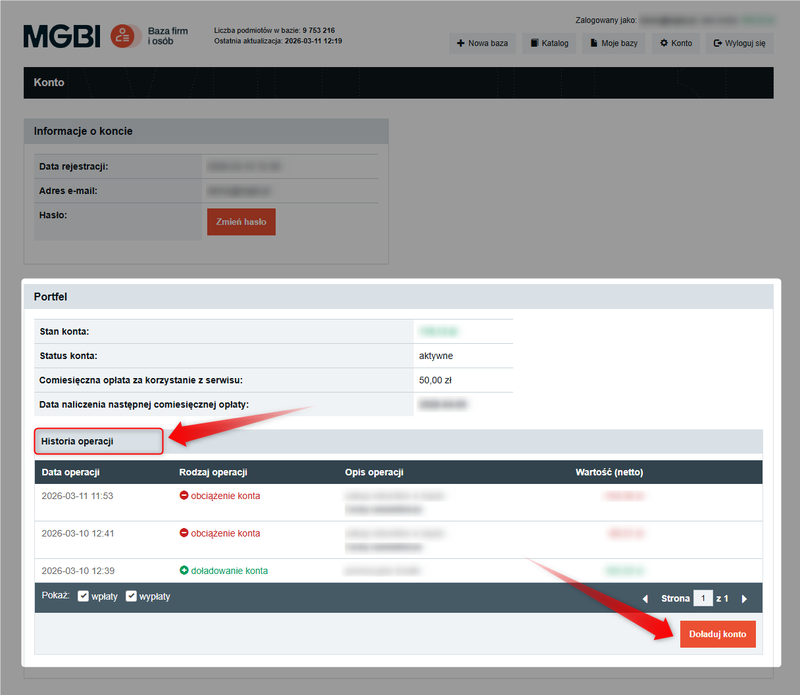
In this tab, you'll see two sections: "Account Information" and "Wallet."
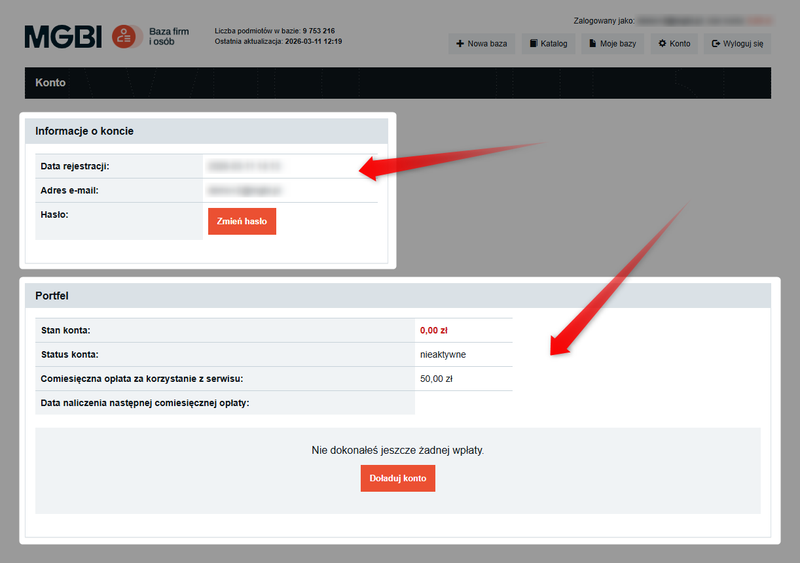
In the "Wallet" section, you can check your current balance (Account Balance) and the account expiration date (Account Active Until).
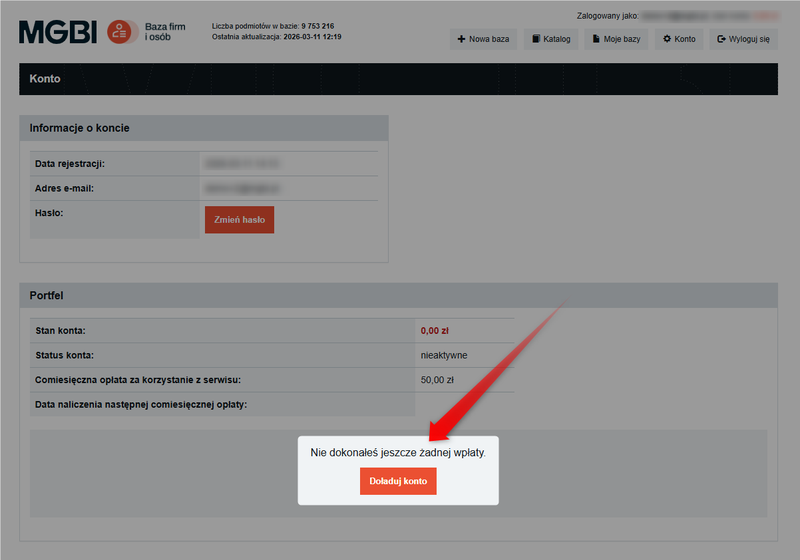
A. If this is your first deposit, you’ll only see the “Deposit” button in your wallet . Click it to go to the deposit form (Step 2).
B. If this is your second deposit, you will also see the "Transaction History" section in your wallet, and the "Top Up Account" button will move to the bottom-right corner of the wallet section.
2️⃣ Top-up while creating a statement
You can top up your account directly while creating your statement if your account balance is too low. At the bottom of the page, click the "Top up account" button.
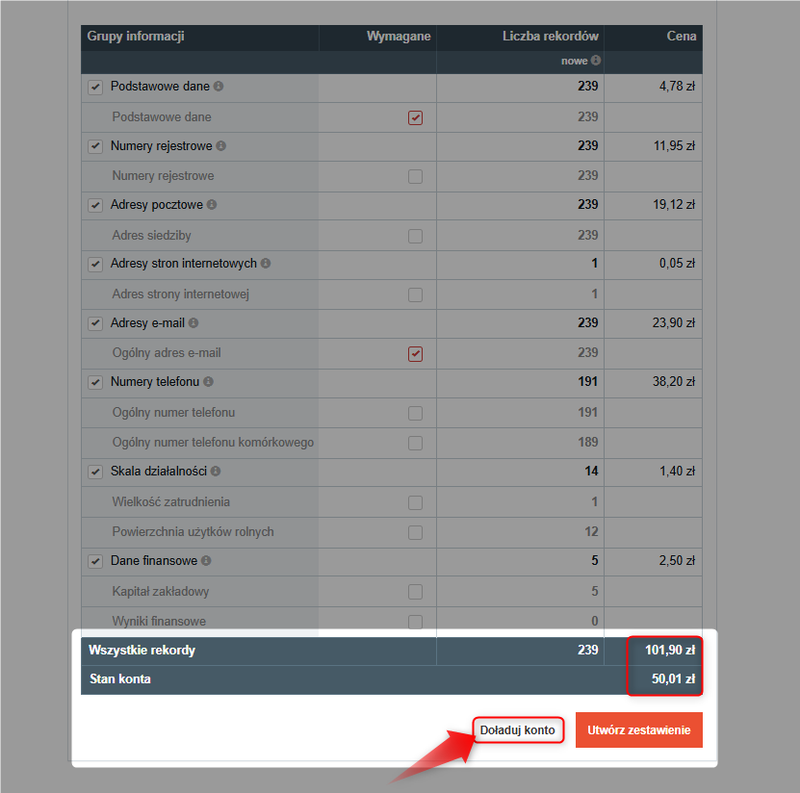
You will be redirected to the top-up form, where the service will automatically fill in the missing amount (which you can edit).
Step 2: Top-up form
In the top-up form, follow these steps:
- Set the net amount - enter or edit the net amount you want to deposit into your account. VAT will be added automatically.
- Please provide the information needed to issue a VAT invoice, including your first name, last name, company name, tax ID number (if applicable), and address. Fields marked with an asterisk are required.
- If you would like to receive a VAT invoice, please check the appropriate box at the bottom of the form.
- Check the box to confirm that you have read and agree to the site's terms of service.
If you plan to use the Business and People Directory regularly, we recommend adding a larger amount to your account. This will help speed up the processing of future orders.
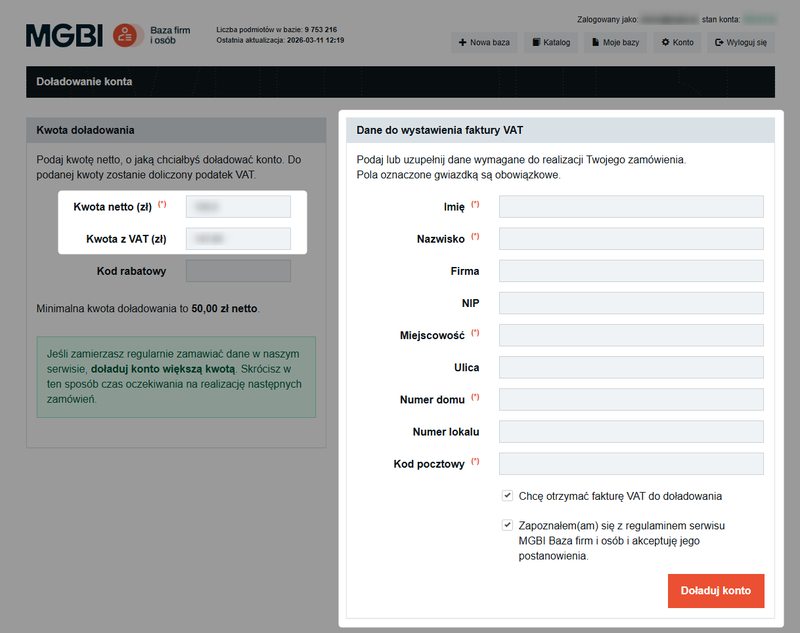
After filling out the form, click the "Top up account" button.
Step 3: Payment Methods and Making a Payment
After submitting the form, you will be redirected to select a payment method supported by PayU.
There are two main ways to pay for your order:
1️⃣ Online payments (instant)
Select this option if you want to start using the data you ordered right away. Available payment methods include instant online transfers, BLIK, debit and credit cards, Apple Pay, and Google Pay.
With these methods, the funds usually appear in your wallet immediately after the transaction is completed.
2️⃣ Traditional bank transfer
You can also choose the standard bank transfer option, in which the PayU system generates the details you need to initiate the payment yourself.
Keep in mind, however, that in this case, the funds will not be available in your account immediately. It usually takes anywhere from a few hours to the next business day for such a deposit to be processed, and in extreme cases, it may take up to several days.
Your account top-up will be completed only once the service has processed the payment and updated your wallet balance.
A VAT invoice will be issued automatically once the payment has been successfully processed.
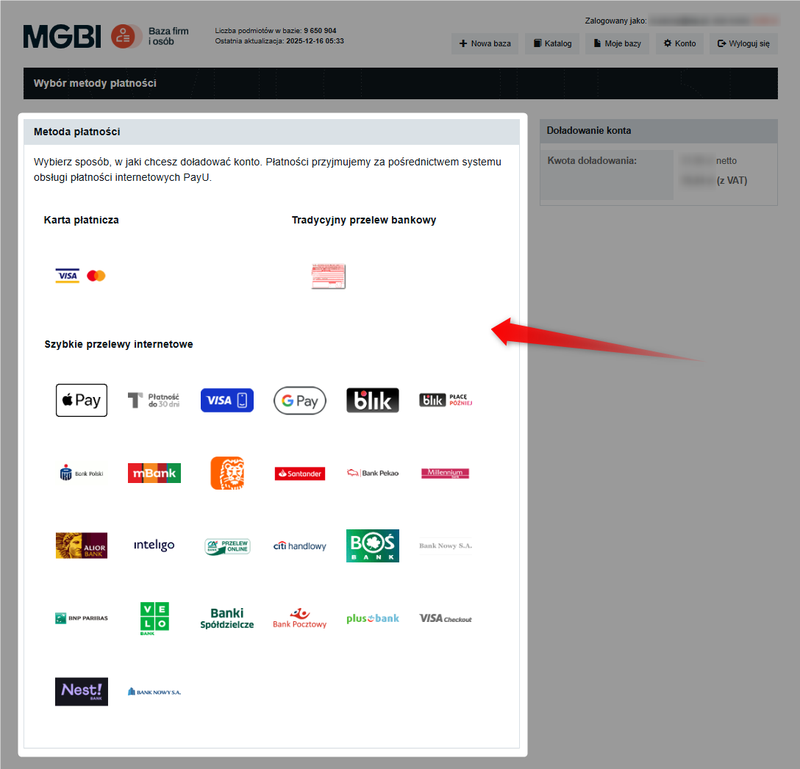
Select your preferred payment method by clicking on its icon. You will be redirected to the selected payment provider's website.
Complete the payment by following the on-screen instructions. The funds will appear in your wallet as soon as the service processes your payment.
If you topped up your account while creating the statement, you can now return to the wizard and generate the file by clicking the "Create Statement" button. The funds will be deducted from your updated balance.
VAT invoices are automatically generated for each payment you make (wallet top-up).
For more information, see the guide: How do I download invoices for completed orders?