
Reports are one of the key features Bankruptcy List, available on the iMSiG.pl, which allows for bulk downloading of data on debtors, e.g., in the form of an Excel file, without the need to manually transcribe the information.
Reports are the perfect solution when:
👉 You work with a large group of business partners and want to check their bankruptcy history all at once.
👉 Do you need a ready-made report in Excel (XLSX) format for analytical purposes?
👉 Do you want to automate your risk assessment and counterparty monitoring processes?
Step-by-step guide to creating a report
Step 1: Selecting entities (Filters)
If you want to export data only for a selected group of debtors, you should first create a filter in which you specify their IDs:
- registration numbers (NIP, PESEL, REGON, KRS)
- or case numbers.
The maximum number of IDs in a single filter depends on your subscription plan.
You can find details about our current plans here: Bankruptcy List - Price List
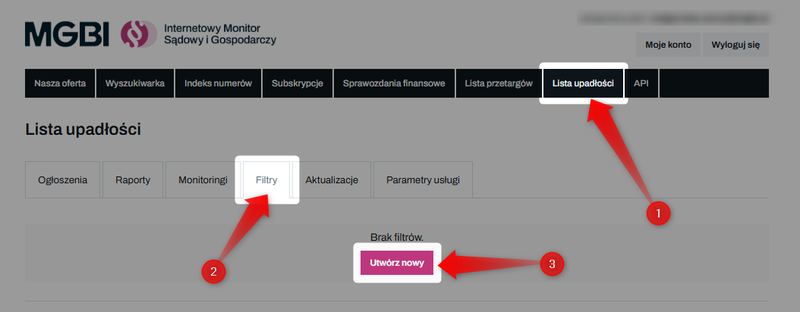
To create a new filter, log in to the website iMSiG.pl and go to the "Bankruptcy List" tab. Then go to the "Filters" tab and click "Create New."
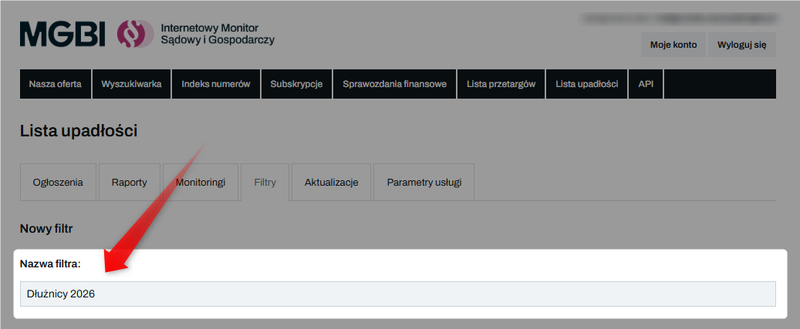
Give the filter a name (e.g., "Debtors 2026")—it will appear in the list of generated reports.
In the text field, paste the debtors' identification numbers (NIP, PESEL, KRS, REGON) or case reference numbers. Each identifier should be on a new line.
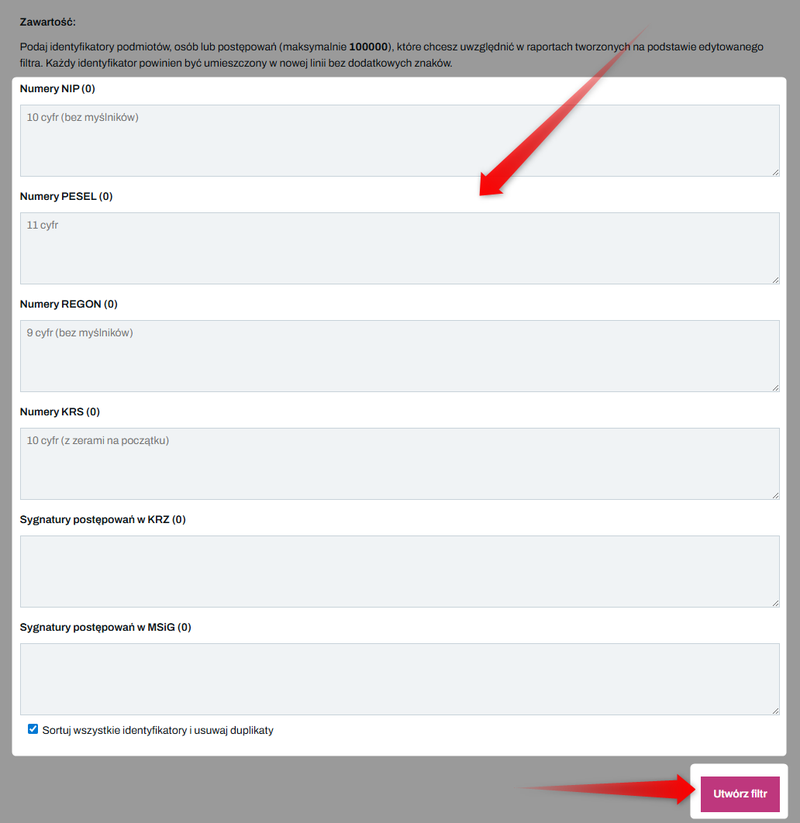
When working with a large number of IDs, it’s a good idea to use a tool that automatically sorts IDs and removes duplicates.
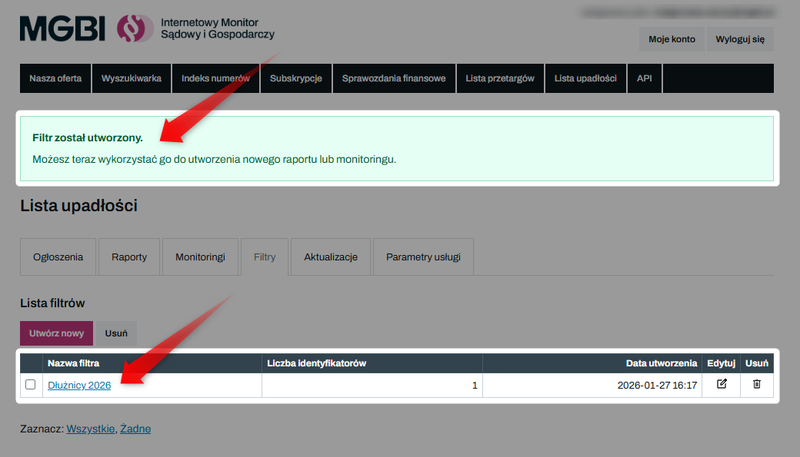
Click "Create Filter." You will be notified that you can now use the filter to create a new report.
Step 2: New Report Wizard
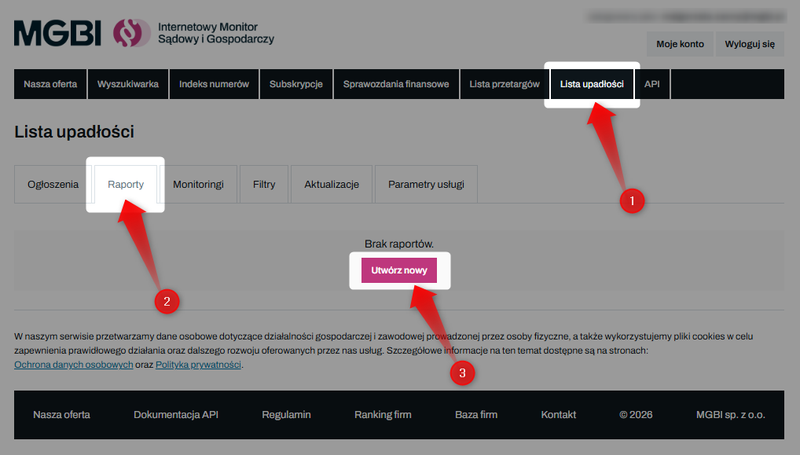
Log in to the website iMSiG.pl and go tothe “Bankruptcy List”tab. Then selectthe “Reports”section and click“Create New.”
Step 3: Configuring the content
In the report wizard, configure the following settings:
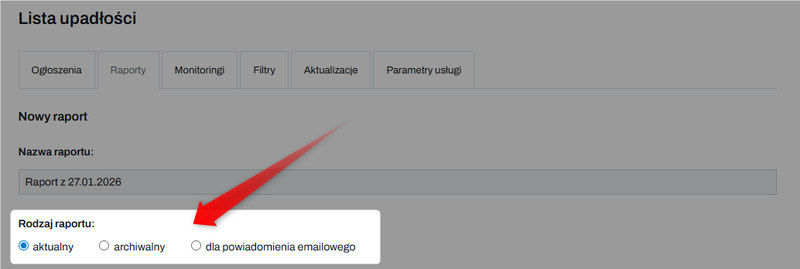
1️⃣ Report type - select one of the three report types:
- Current – contains listings published after the date your service was activated (counting from the first day of the month in which access was enabled),
- historical – includes data from before the service was activated, dating back as far as 2001,
- For email notifications – allows you to generate a file containing the alerts that the system notified you about in a specific monitoring notification.
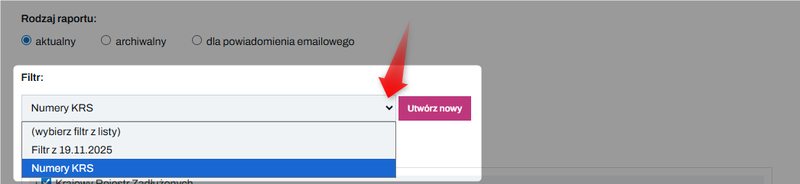
2️⃣ Entity filter —select a previously created filter or leave the field blank.
If you want to download all listings from a specific period, leave this field blank (this option is available only on Pro and Enterprise plans).
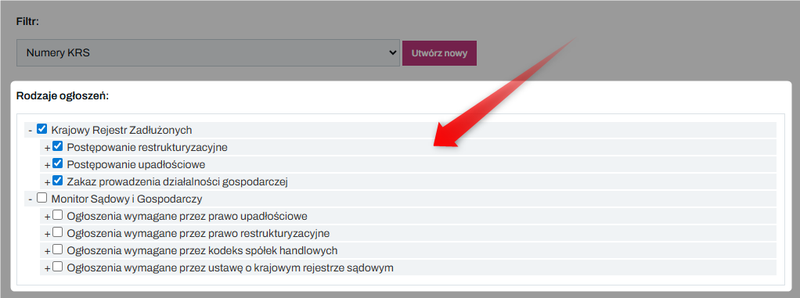
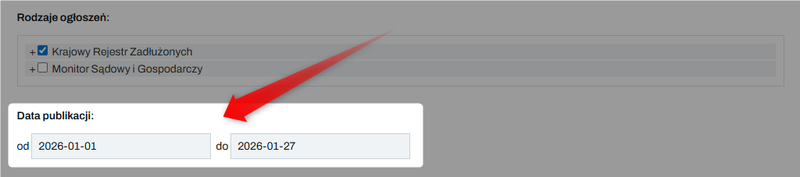
3️⃣ Data source / Ad types – you can limit the report to specific ad categories.
4️⃣ Date range – specify the time period for posting announcements.
The publication date (to) should be set to the previous day. Data from the KRZ is updated late into the evening, and the full range of information is not available until the following day.
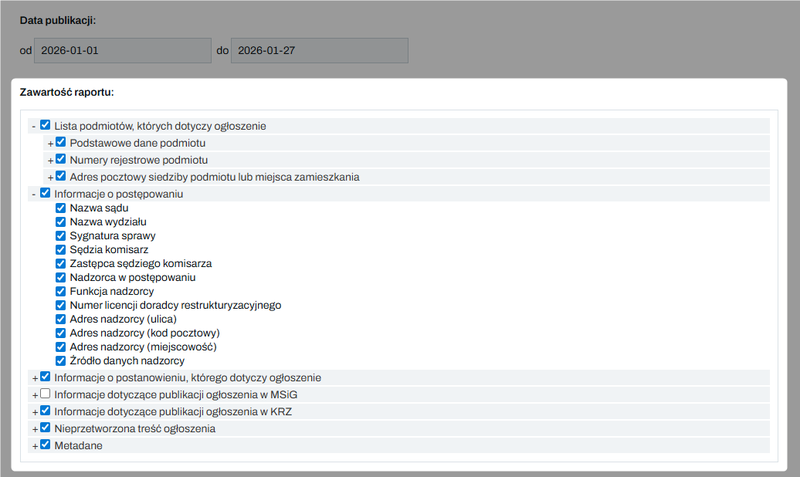
5️⃣ Report contents (columns) – select the information you want to include in the output file (e.g., case number, trustee details, announcement text). Each item will be saved as a separate column in the file.
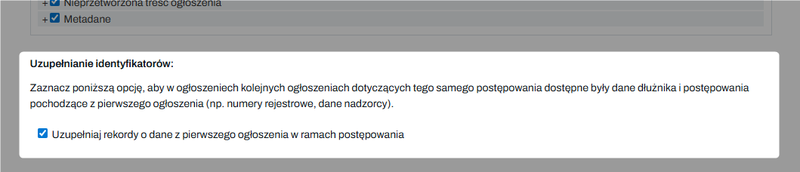
6️⃣ Auto-fill identifiers – we recommend enabling this option. The system will automatically assign identifiers (NIP/PESEL) to subsequent notices in a given case, even if they were not included in the text of later notices.
Step 4: File Format and Security
Reports can be generated in the following formats:
- XLSX (Excel),
- CSV,
- XML,
- JSON,
- DEF (for import into defBank systems),
- NOVUM (for import into Novum systems).
Three character encoding formats are also available: UTF-8, CP1250, and ISO-8859-2.
Each report is generated as a password-protected ZIP archive; you set the password yourself when creating the report.
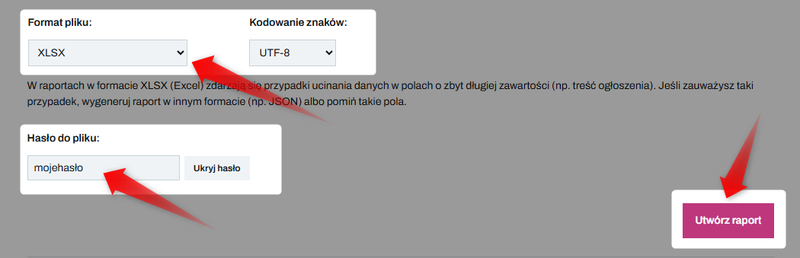
Once you've filled out all the sections, click "Create Report".
Download the report
Once the report has been created, it will appear in the list of reports. Depending on the amount of data, it may take anywhere from a few to several minutes to generate.
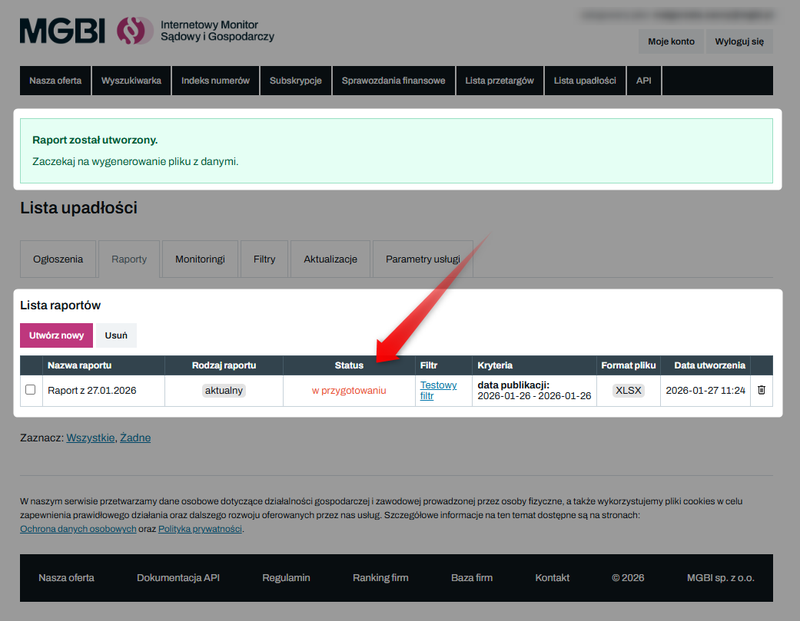
Once the report has been generated, it will be marked as "Ready." Clicking on the report name will allow you to download the file to your computer.
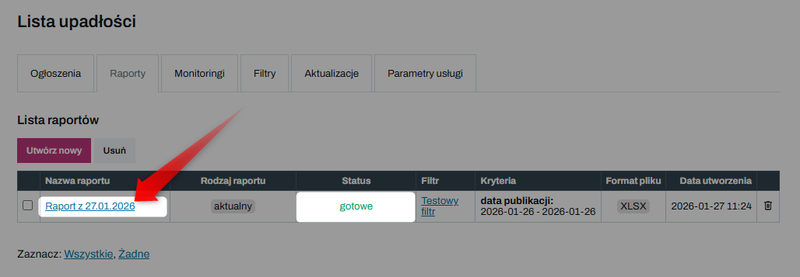
Download links remain active for 30 days after they are generated. After that time, the files are archived and are no longer available for download.
Limits
The generation of reports in the Bankruptcy Register is subject to the following limits:
1️⃣ Current/Archived Reports – the limit on the number of reports you can generate in a given billing month.
- With the Pro and Enterprise plans, you can generate real-time reports without using a filter, allowing you to download all listings from a selected date with a single click.
- In lower-tier plans, every attempt to generate a report reduces the available quota, even if the file turns out to be empty because there are no listings that meet the criteria.
2️⃣ Debtors in the report – the maximum number of identifiers (NIP/PESEL) you can include in a single filter to export their data in a single file (filter capacity).
Generating a report for a specific list of debtors also reduces the limit on the number of unique debtors checked in a given month.
👉 Learn more about limits: How do I check my limit usage in the Bankruptcy List?
👉 Check out our current offerings and price list: Bankruptcy List - Price List