The data on the Business and Individuals Directory website is sourced from public registries (CEIDG, REGON, KRS) and is updated daily. This allows for real-time market monitoring and enables businesses to be reached shortly after they begin operations.
There are two main methods for collecting data on new companies:
- one-time report with a time filter (Step 1),
- Regularly update your database (Steps 2 and 3).
Step 1: Creating a database for new companies
If you're interested in companies that started up within a specific time frame (e.g., in the last month), you'll need to create a new database and apply a time filter.
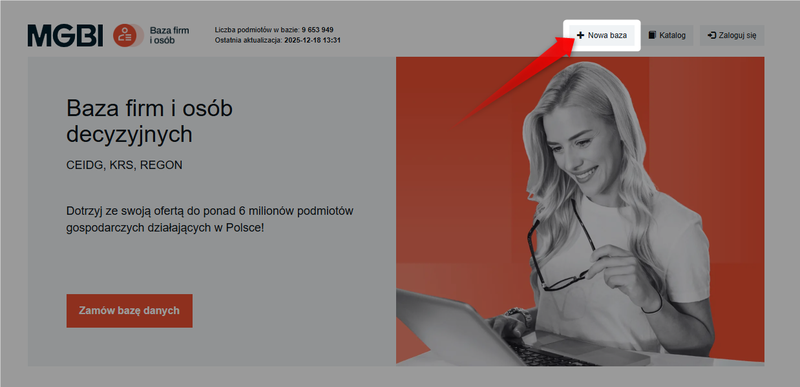
Click the "New Database" button in the menu at the top of the page.
In the database configuration panel, select the "Existence Period" option . This filter allows you to specify the start date of operations with precision.
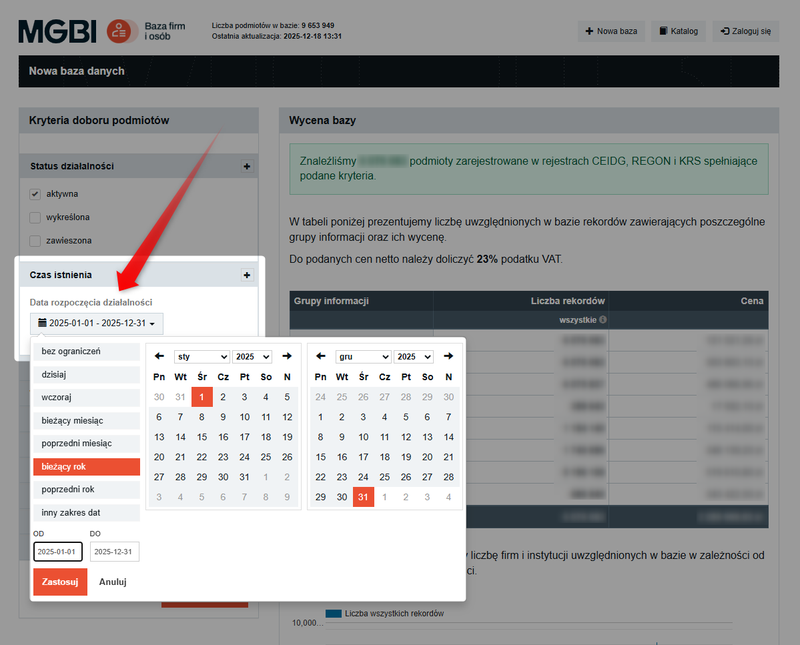
You can specify your own date range or choose from predefined options (e.g., "current year"). This allows you to filter out only those entities that were established during the selected period.
These directories allow you to list a business with a future start date. By setting the end date a few months in the future, you can reach businesses that are just planning to open.
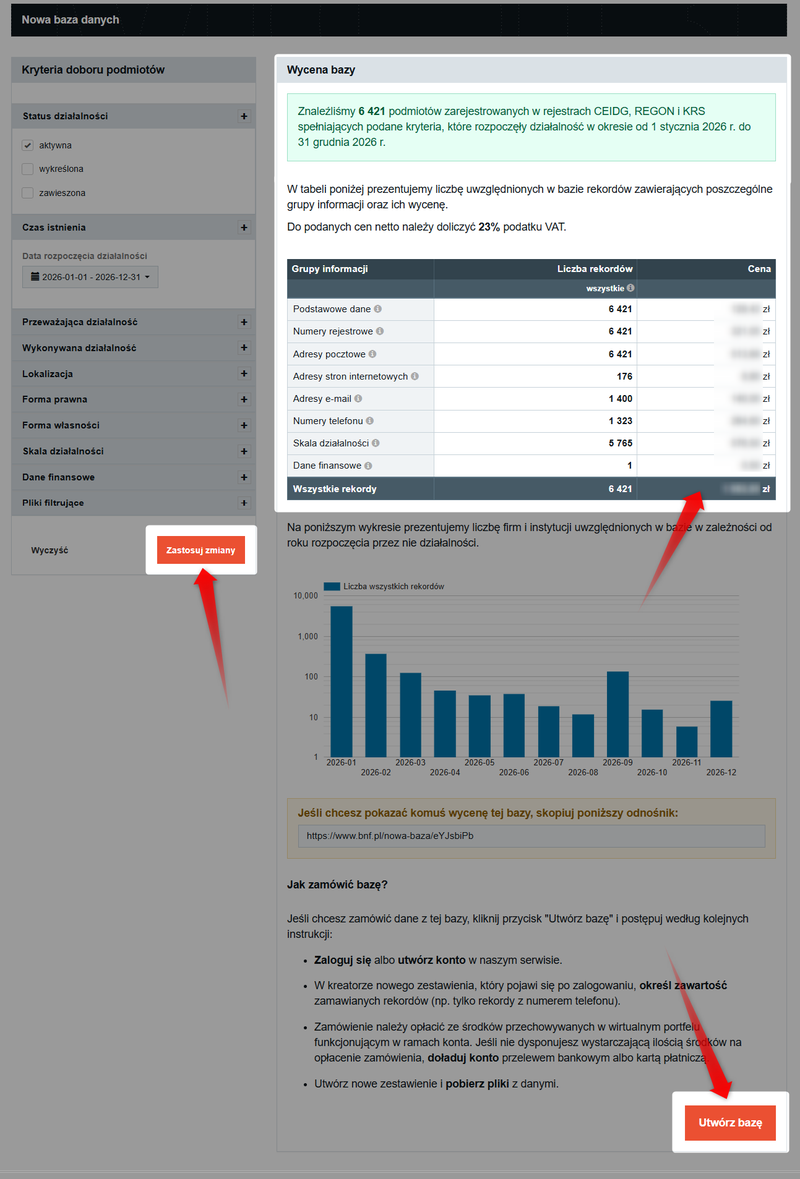
After setting the filter and clicking "Apply"in the "Database Quote" section, you will see a preliminary quote. Click "Create Database" to proceed to the detailed quote and generate a summary.
See also: How do I create a new report in the database?
Step 2: Update the database with new records
If you already have a database with fixed criteria and want to update it with records that have appeared in the registers since it was created, use the "New Report" option .
Please note that you must have an account on the website to create a playlist.
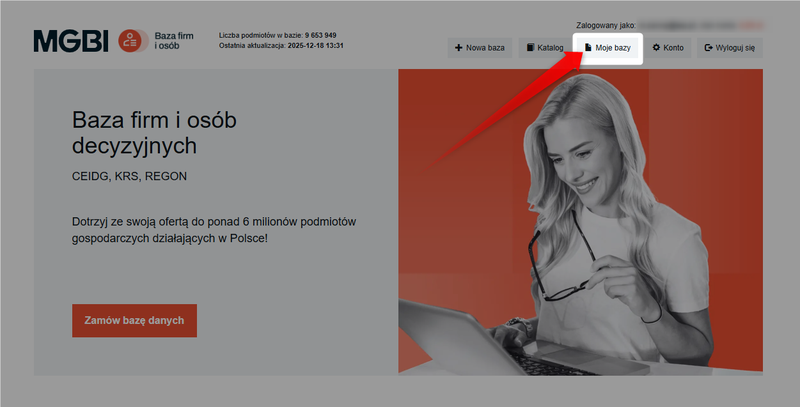
Select "My Databases" from the menu at the top of the page.
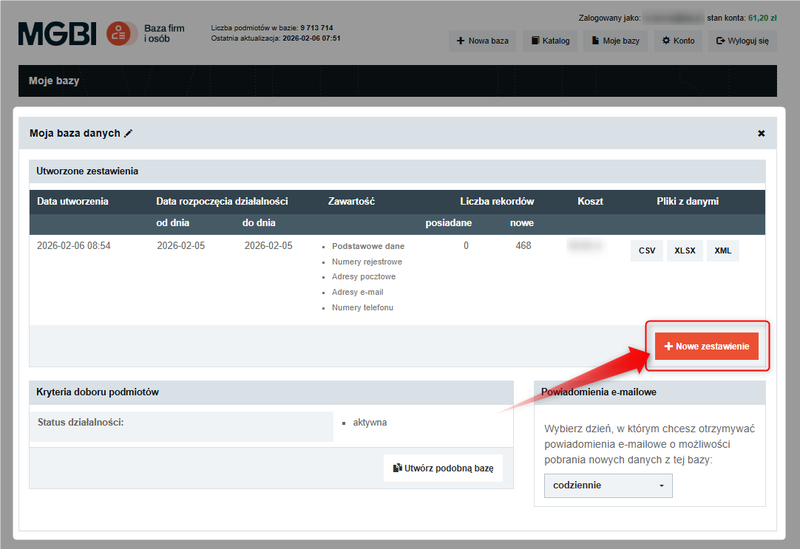
Click the "New Report" button for the database you want to update.
In the "Record Selection" section, select the " New only" option.
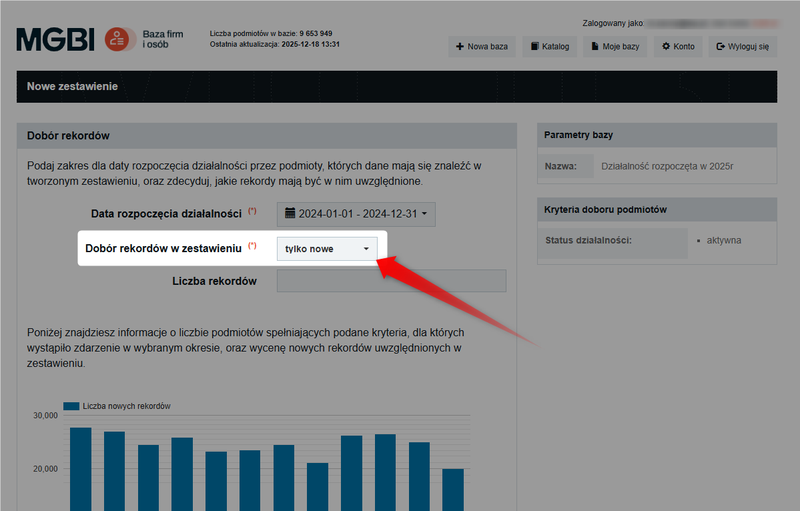
Selecting the "new items only"option is the perfect solution for keeping track of the market. It allows you to generate a new list that automatically excludes items you have already purchased.
The service does not charge twice for the same data.
The process of purchasing data on the "Business and People Directory" website is based on a prepaid (wallet) model.
Every time you generate a new invoice, the final cost of the order will be charged to your account. If your account balance is insufficient, the system will prompt you to add funds to your account.
See also: How do I add funds to my account on the website?
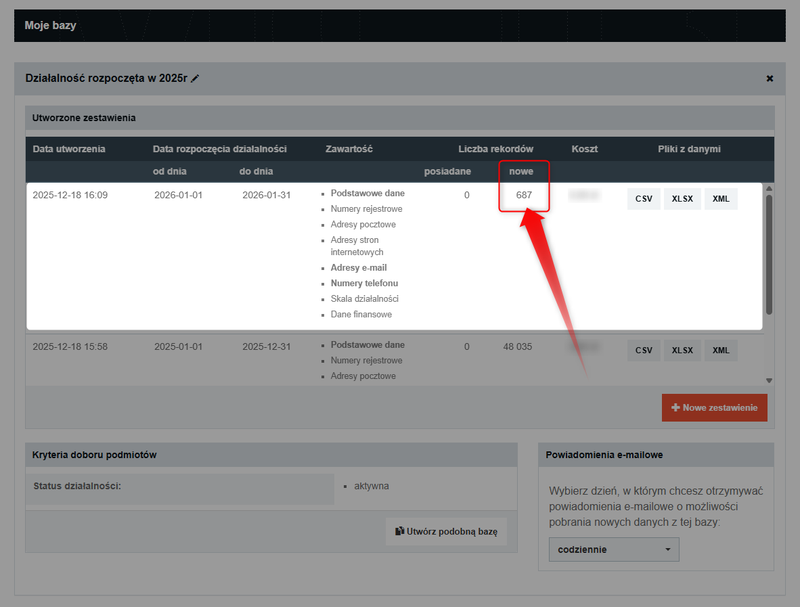
The new report will appear at the top of the list of reports for that database.
Step 3: Monitoring new records
To avoid having to manually check for new records, you can set up email notifications for new records that match your database criteria.
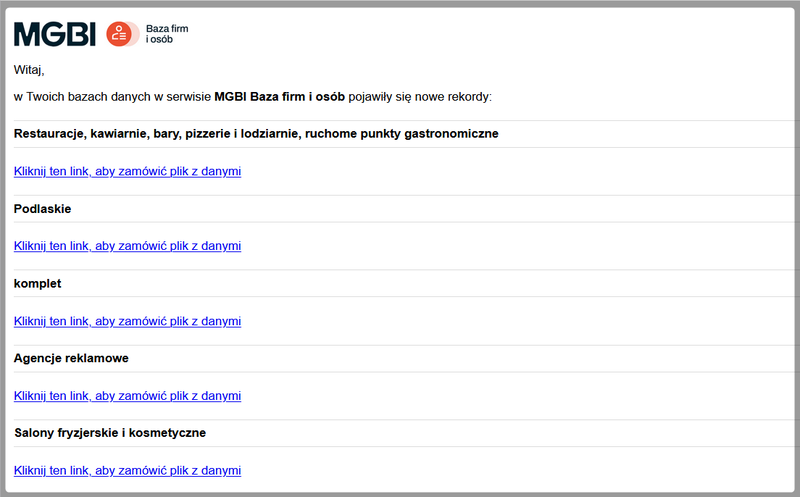
This way, you'll receive notifications about new records directly in your inbox, along with a link to the new report wizard.
Please note that, in accordance with the site’s terms of use, the automatic monitoring and notification feature is available only to active accounts.
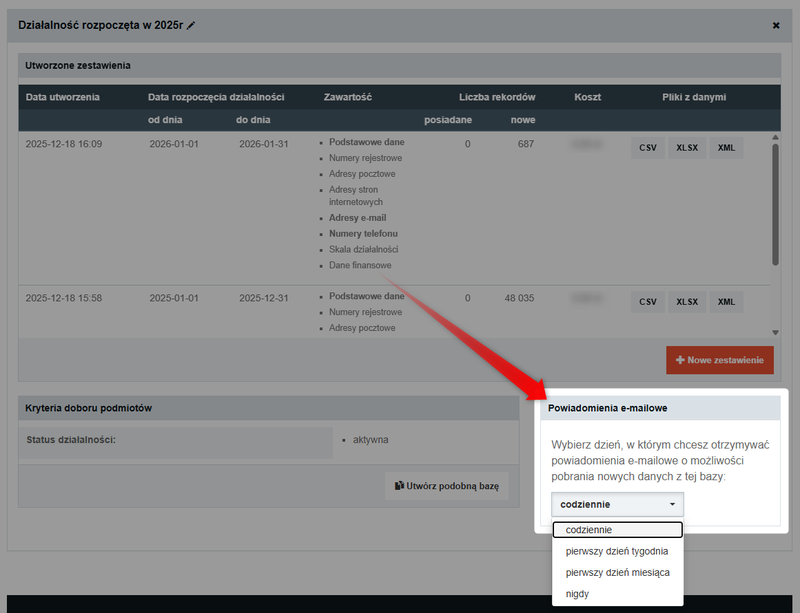
For each database you create, in the "Email Notifications" field, you can select the notification frequency that suits you:
- twice a day (9:00 a.m. and 4:00 p.m.),
- once a day (9:00 a.m.),
- the first day of the week (9:00 a.m. on Monday),
- the first day of the month (9:00 a.m. on the first day of the month),
- or never (completely disabled).
Email notifications include a link that takes you directly to the New Report wizard for that database.