
The Business and Individual Directory service allows you to create a database of companies with very precisely defined parameters. The data comes from public registries (CEIDG, REGON, KRS) and is updated daily.
The following instructions will guide you through the process of configuring criteria (Wizard) and obtaining an initial quote, which you can do without logging in.
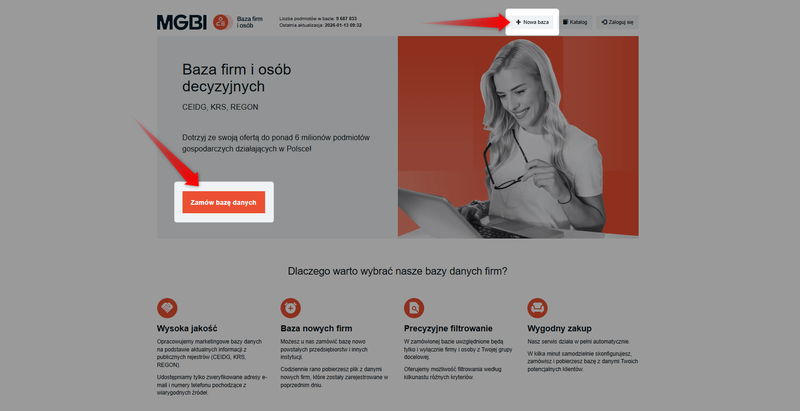
To start creating a database, select "New Database"from the menu at the top of the page or click the "Order Database"button on the home page.
Step 1: Setting up a new database (Wizard)
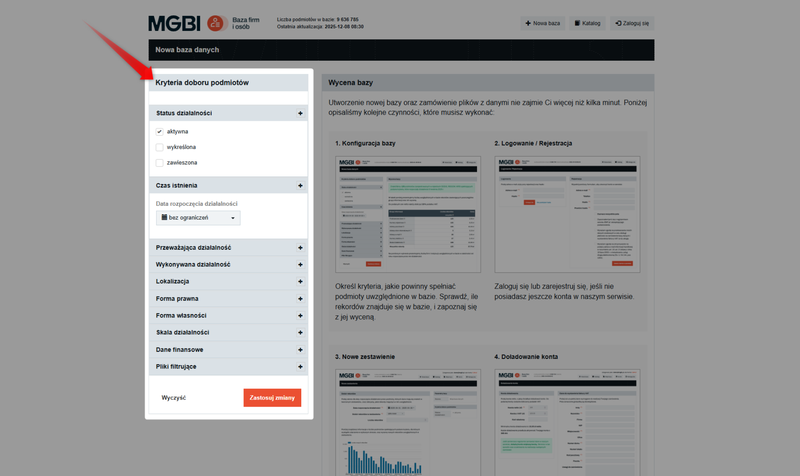
The criteria that will help you determine what to include in your database are available in the menu on the left:
1. Business Status
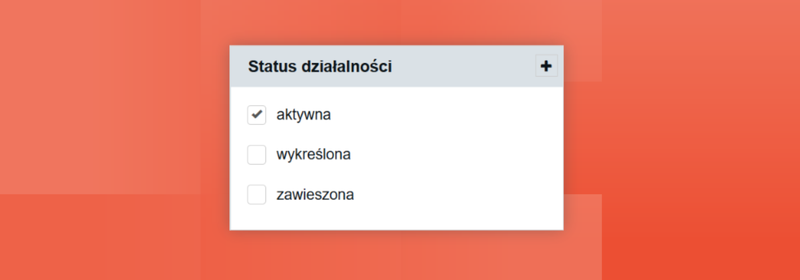
The first step is to determine the current status of the entities in question:
- active - the standard option for sales activities (cold calling, email campaigns),
Keep in mind that this group also includes companies that are in the process of liquidation, bankruptcy, or restructuring, as they are still technically in business.
- suspended or delisted —options used rarely, useful for historical market analysis, statistical research, or debt collection efforts.
2. Duration
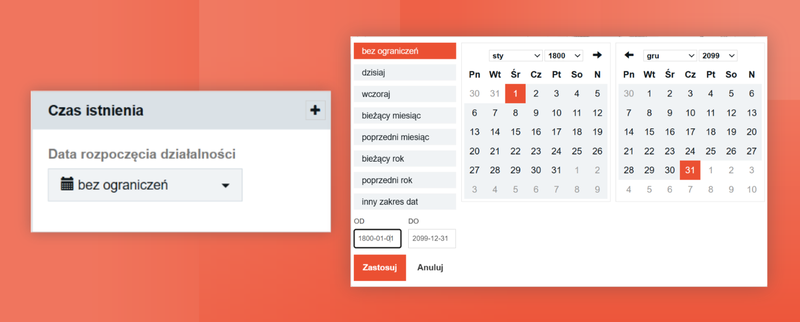
This filter lets you specify the date a business was established. For example, you can filter out companies that were founded within the last month, which is ideal for post-sale campaigns targeting new entrepreneurs.
You can also specify other time periods that interest you. This filter allows you to exclude companies that are just starting up from the database, tailoring the companies’ years in business to your needs.
When collecting data on newly registered companies, it is important to note that in public registries (such as CEIDG), entrepreneurs often declare a future start date for their business. This date may be postponed by as many as several months.
If you are interested in the latest registration data, we recommend setting the end date to a future date so that the report includes entities that have been formally registered but have not yet begun operations.
For more information, see the guide: How to download data on newly registered companies?
3. Industry (PKD): Primary vs. Actual Activities
The "Industry" (PKD) criterion allows you to precisely define the business profile of the companies to be included in the list.
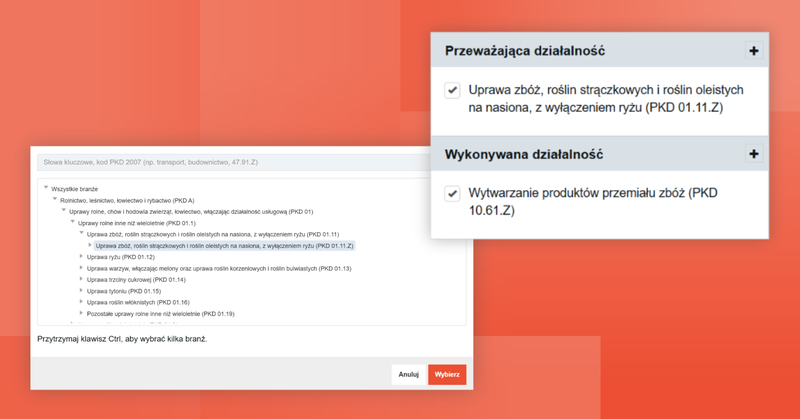
The PKD (Polish Classification of Economic Activities) is the primary system for classifying types of economic activities, used in statistics, records, and official registries in Poland.
The Business and People Directory currently uses the PKD 2007 classification. Under this classification, the website’s filtering system distinguishes between two key types of business activity: the predominant (main/dominant) activity and the secondary (ancillary) activity. A transition to the PKD 2025 classification is planned for 2027.
A. Primary business activities
This is the most important filtering criterion, as each company in the database is assigned only one primary business activity. Selecting the primary business activity is recommended because the results obtained are more reliable.
You can select a specific industry by searching for it by:
- keyword (e.g., “transport” or “trade”);• PKD code (e.g., 01.11.Z);
- or by using the drop-down menu (from sections to very specific codes).
When using the drop-down menu, hold down the Ctrl key to select multiple options (industries) at once.
If you select several PKD codes, the database will include data for every company that matches at least one of them.
B. Business Activities
This filter applies to a company’s secondary business activities. Caution should be exercised when using it for sales segmentation, as the results may be less reliable.
The "Business Activity" filter is the broadest filter because it includes not only secondary PKD codes but also automatically includes the main PKD code.
If you set the code only in the "Business Activity" filter, the database will include companies for which this code is treated as both the primary and secondary code. Using this filter in this way will increase the size of the database.
4. Location
The location filter allows you to narrow your search to a specific region of Poland. You have two main filtering options available:
A. List (Territorial division – TERYT registry)
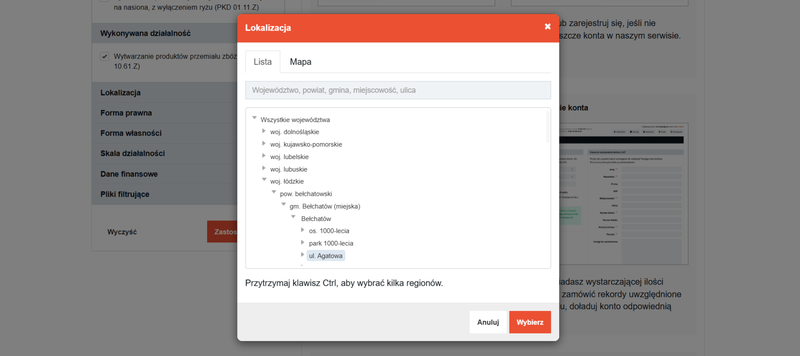
This filtering is based on the TERYT registry (National Official Registry of Territorial Division), which defines the country’s administrative territorial division. The registry therefore allows companies to be filtered according to Poland’s official territorial division.
The system allows for a precise progression from the general to the specific: province → county → municipality → town.
You can narrow down the search results, for example, to specific streets. Searching by city or administrative division is the most commonly used method.
B. Map (Radius)
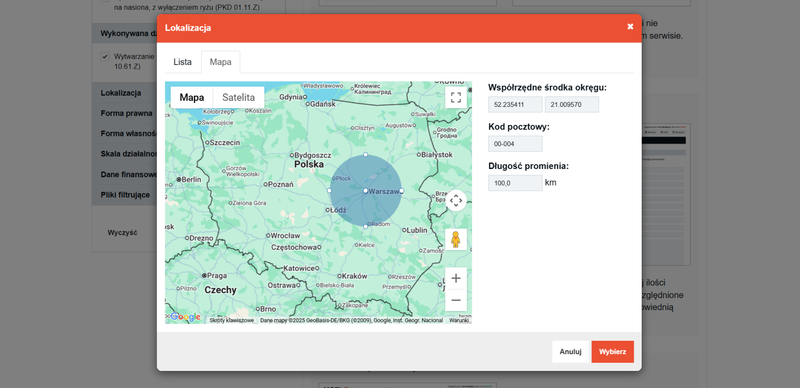
You can also use the "Map" tab . In this option, you select a specific location (coordinates) or ZIP code, and then set a radius (e.g., 100 kilometers) to search for businesses located within that area.
5. Legal form
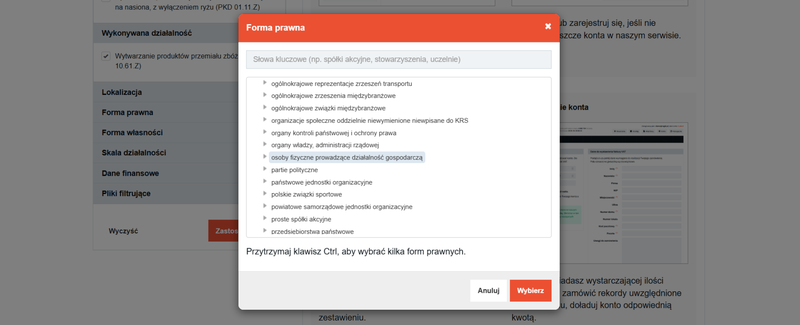
This criterion allows you to search for specific types of entities (e.g., corporations, foundations, political parties, housing associations, sports clubs).
The category“Individuals conducting business activities”encompasses a wide range of entities, including both entrepreneurs registered in the CEIDG and individual farmers. This is due to their classification in the REGON registry.
If you do not set any PKD filters, your database will also include data on farmers. To prevent this and receive only business data, select all the industries (PKD) that interest you, excluding the agricultural section (Section A, Division 01).
6. Form of ownership
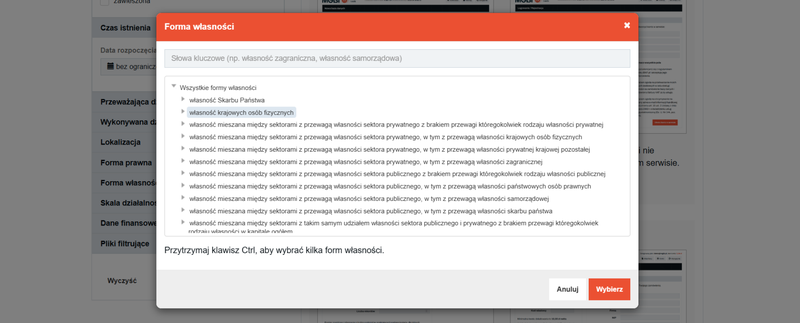
This allows you to narrow down your search for entities based on who owns them.
This filter is useful if, for example, you are targeting companies with foreign capital or want to filter out public entities. Your options include:
- owned by the State Treasury or local government entities (local government-owned),
- owned by domestic individuals (private sector),
- foreign ownership,
- mixed ownership (e.g., predominantly public or private).
Data on ownership structure is derived from declarations submitted during registration with the REGON registry. For this reason, it is rarely updated in the event of subsequent changes in ownership or capital.
This filter accurately reflects the status of a business at the time of registration, but it is not 100% reliable when it comes to the company’s current status, which means it is used for statistical purposes rather than for precise sales segmentation.
7. Scope of operations
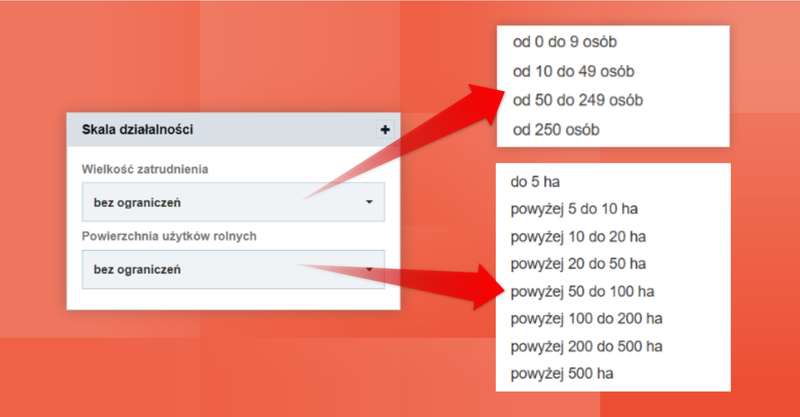
It allows you to search for companies based on factors that describe their size. This criterion is crucial in B2B segmentation, as it allows you to distinguish between micro-enterprises and large corporations.
A. Number of employees
It allows you to segment companies by number of employees and by SME classification (micro, small, and medium-sized enterprises):
- 0 to 9 people (Micro),
- 10 to 49 people (Small),
- 50 to 249 people (Medium),
- 250 people or more (Large).
The employment data comes from several sources and is partly estimated (e.g., based on financial data). The data is of sufficient quality to allow for a simple classification into small and large firms.
B. Agricultural land area
It allows you to specify the size of a farm in hectares (e.g., up to 5 ha, over 100 ha). We estimate this data based on the subsidy amounts allocated to individual farms, as disclosed in the most recent available List of Common Agricultural Policy Beneficiaries.
This filter is particularly useful for databases of farmers or farms. It should not be used when the target is general businesses (e.g., retail).
8. Financial Data
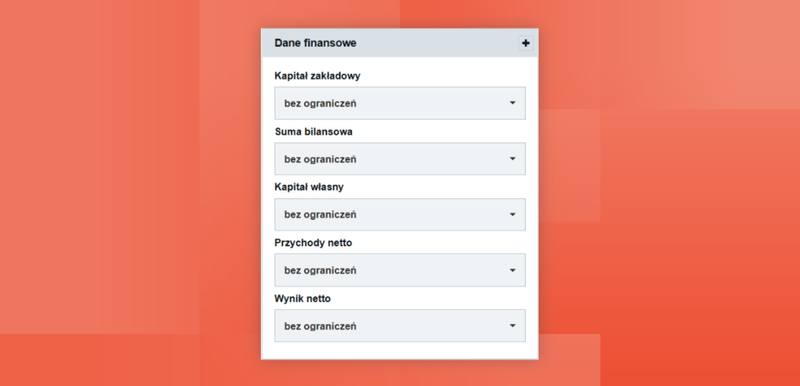
Financial data (e.g., total assets, net income) applyonly toentities listed in the National Court Register (companies) that file financial statements.
- You can segment companies byNet Income (profit/loss) orEquity.
- Negativeequity may indicate that the company isin poor financial condition or at risk of bankruptcy.
- Total assetsand net revenueare the most important filters for segmenting company data for sales campaigns.
Financial filters always refer toa company’s most recent available financial report, not to a specific calendar year.
9. Filter files
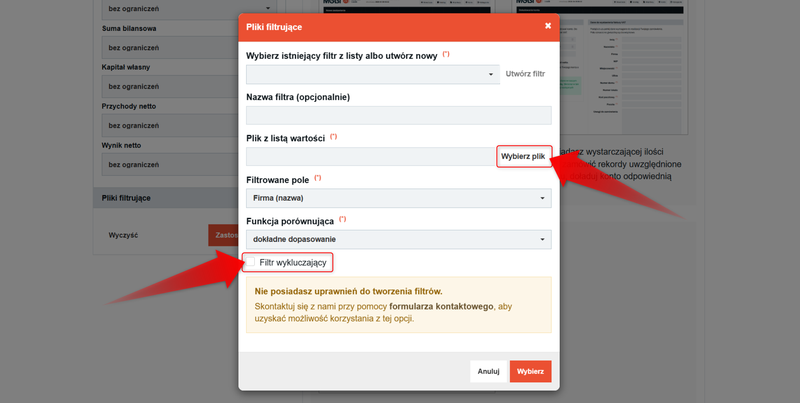
This is an advanced option that allows for custom database configuration.
It allows you to work with your own lists of identifiers (tax ID, business registration number, corporate registration number, email address, or phone number) and has two main uses.
A. Limiting the database to records from the list
You can upload a file containing your own list of IDs. The system will match only those records that appear on your list. This is useful when you want to add additional data (such as phone numbers) to your existing list of companies.
B. Excluding records from the list
This is essential for deduplicating the database —that is, removing records from the filtered results that you already have in your CRM system or contact list.
To do this, upload a file containing the relevant data (Tax ID/REGON/KRS/email/phone number), and then select the"Exclusion filter"option so that these records are not included in the order.
This feature is disabled by default. It is enabled only at the customer's request to minimize the risk of system overload if a user attempts to upload a file that is too large.
For more information, see the guide: How do I deduplicate an ordered database using filter files?
Step 2: Preliminary Estimate and Database Creation
After setting the criteria, click "Apply changes":
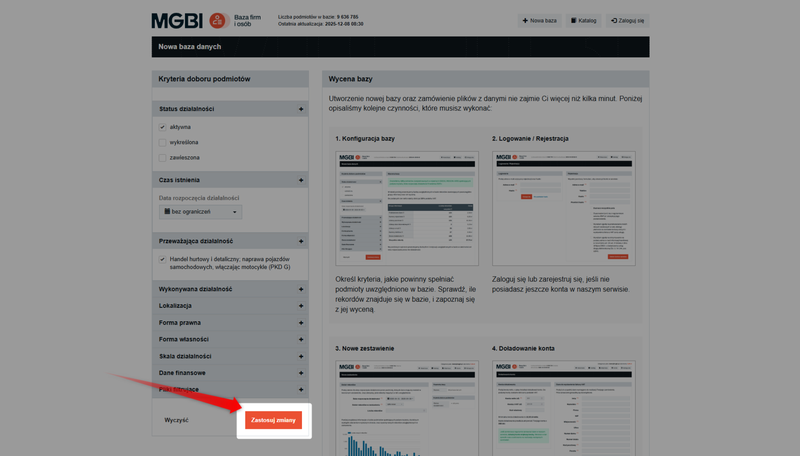
The service will display the number of records that meet the criteria and a preliminary estimate.
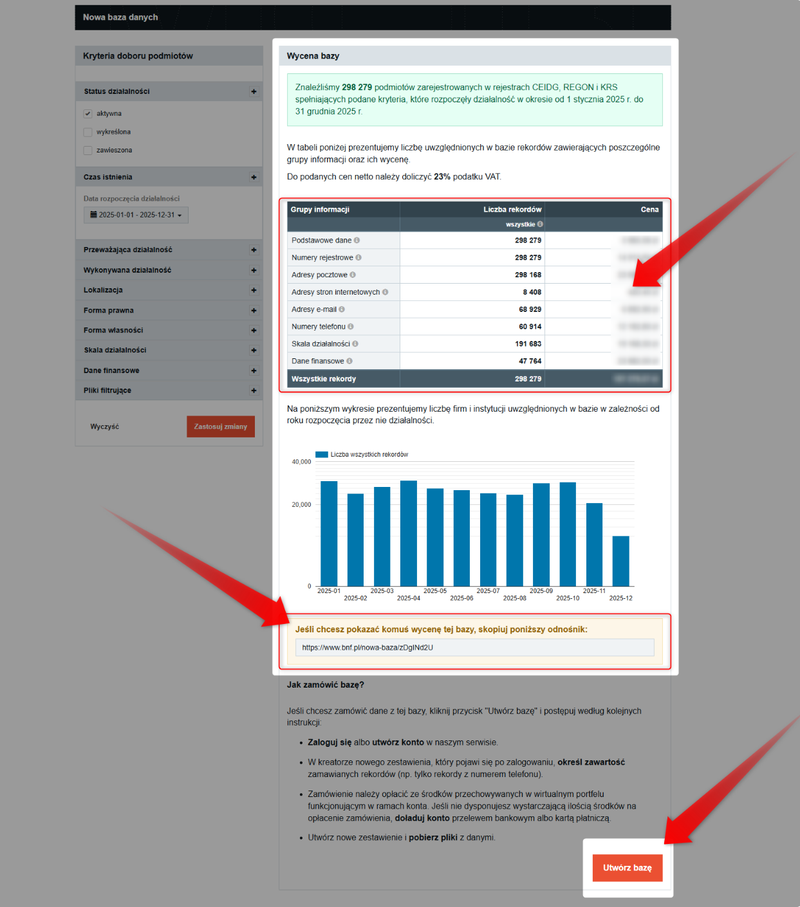
In this view, you can see how many records each category of information applies to (e.g., email addresses, mailing addresses, website addresses, phone numbers).
Basic data and registration numbers are available for most records, while other information is only partially available.
You can also share the link to the preliminary quote with others so they can view the same quote without having to reconfigure the database from scratch.
The preliminary quote shows the price for the full data package for all records that meet the specified criteria.
This is the maximum price and is usually reduced in the next step (when creating a new report).
If you are satisfied with the number of records displayed, click the "Create Database" button. The system will prompt you to log in or create an account.
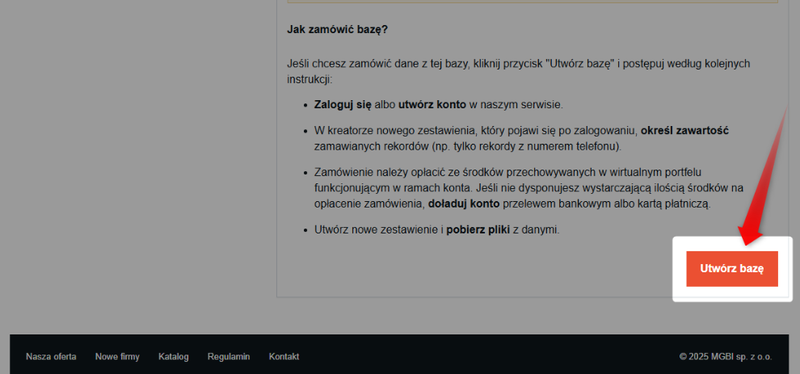
After logging in, you will proceed to the "Create New Report" screen, where you can generate a precise quote by selecting specific fields (such as email address or mobile phone number), which will reduce the number of records in the final report and lower its price.
For further instructions, see the guide: How do I create a new report for my database?