The catalog of pre-built databases is a collection of predefined reports designed for users who want to quickly retrieve data without having to configure filters themselves in the wizard.
This is the easiest way to request information about companies in a specific industry, region, or with a specific legal structure.

What does the Catalog offer?
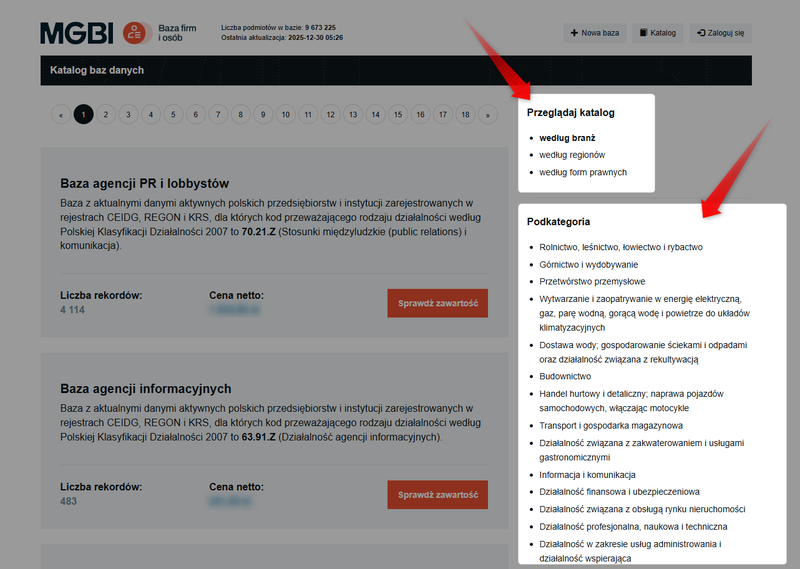
The directory ensures full data transparency even before a purchase is made. The databases are classified into three main categories: industries, regions, and legal forms.
Subcategories may also come in handy. They allow you to quickly access the most popular lists.
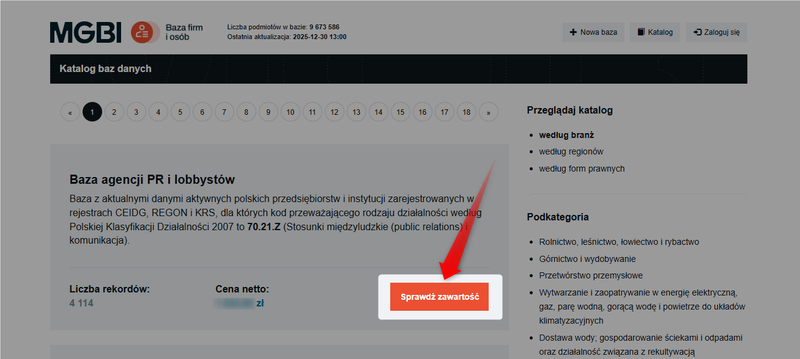
For each item in the catalog, you'll see the exact number of records and the net price for the full data package available.
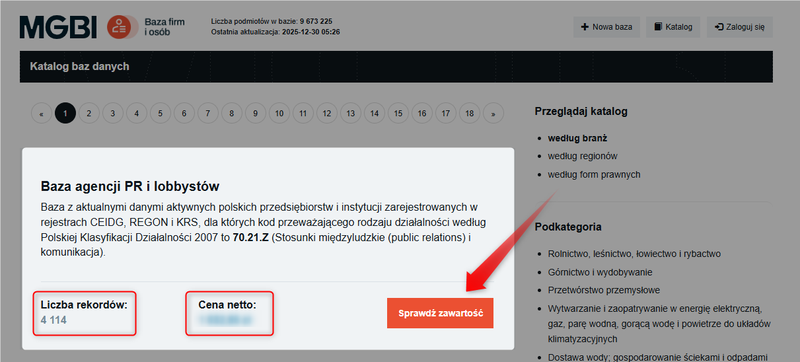
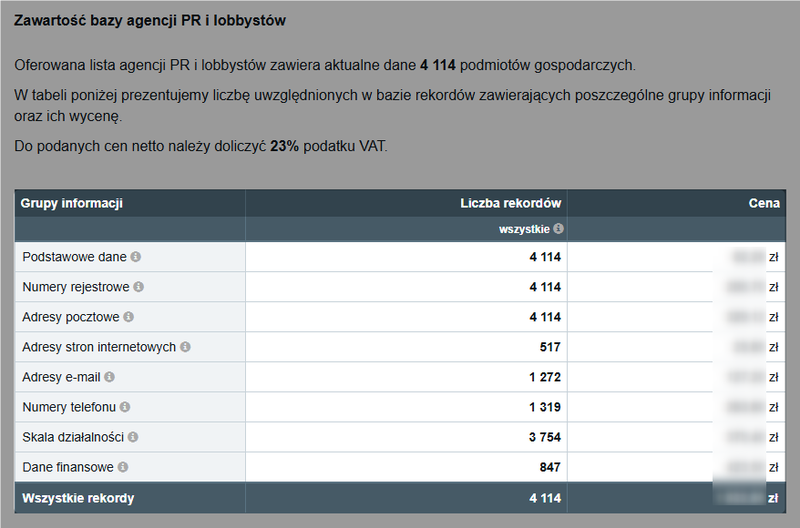
After clicking "View contents," you'll see:
- Available contact groups (e.g., email, phone) along with their unit costs,
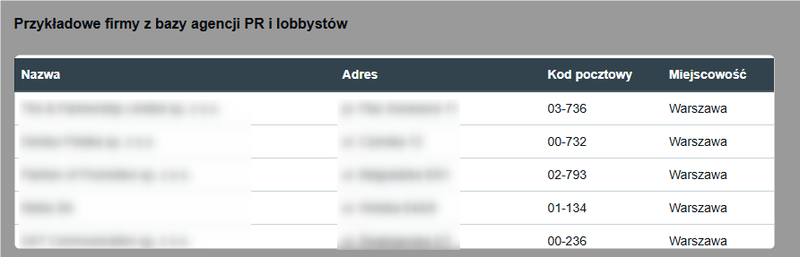
- sample company data (name and address) included in the list,
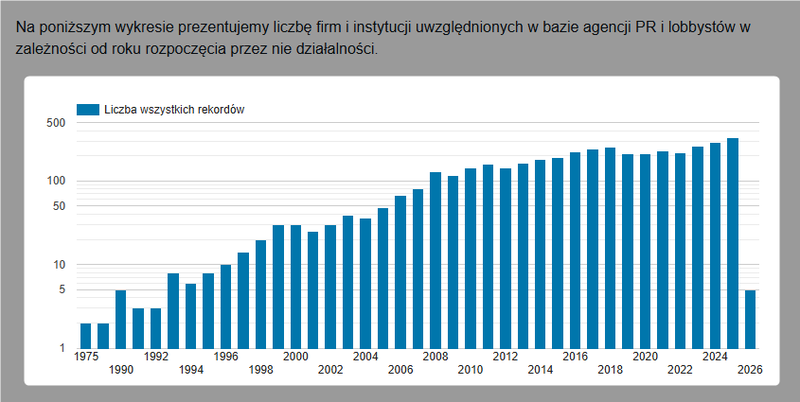
- a chart showing the start dates of all entities in the list.
How do I order a ready-made database?
Step 1: Selecting a database
In the Catalog section, find the database you're interested in and click "View contents."
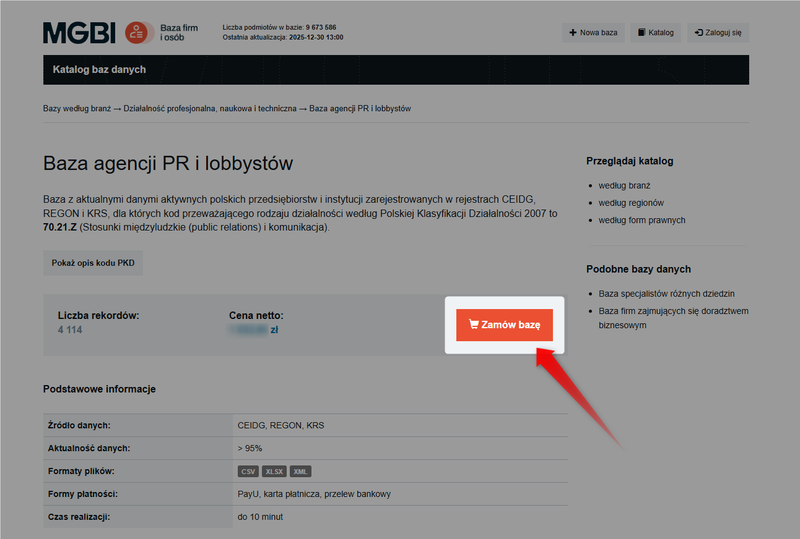
If these specifications meet your needs, click the "Order Database" button.
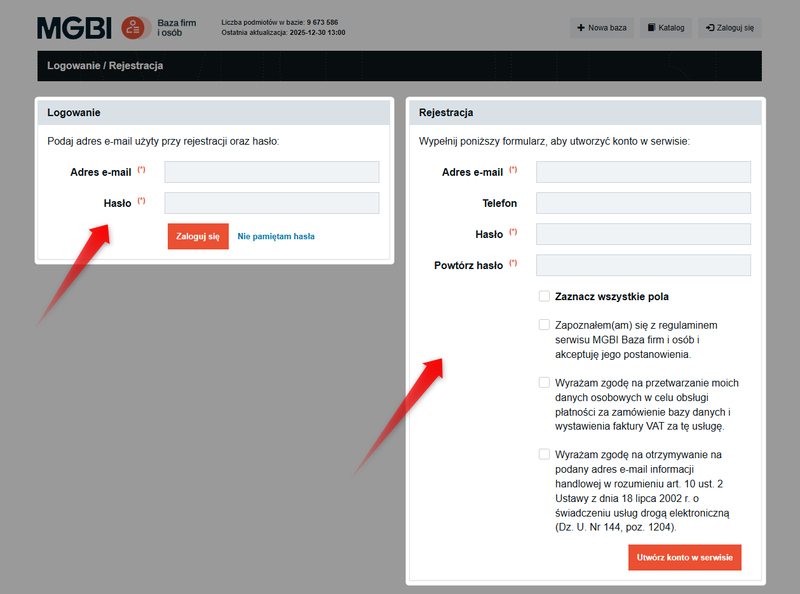
Step 2: Log in / Sign up
To complete your order, you must have an account on the website.
- If you aren't logged in yet, the site will ask you to log in or sign up, and then automatically create a database for your account.
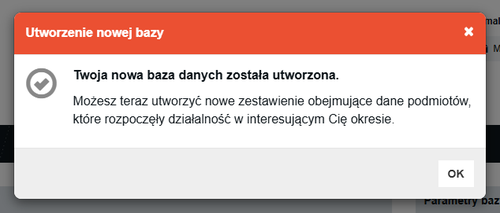
- If you're logged in, the site will take you directly to the next step and display a message confirming that the database has been successfully created in your account.
Step 3: New report - select data range
You will be redirected to the next step of the ordering process, which is creatinga"New Quote." Here, you can get a detailed quote tailored to your needs.
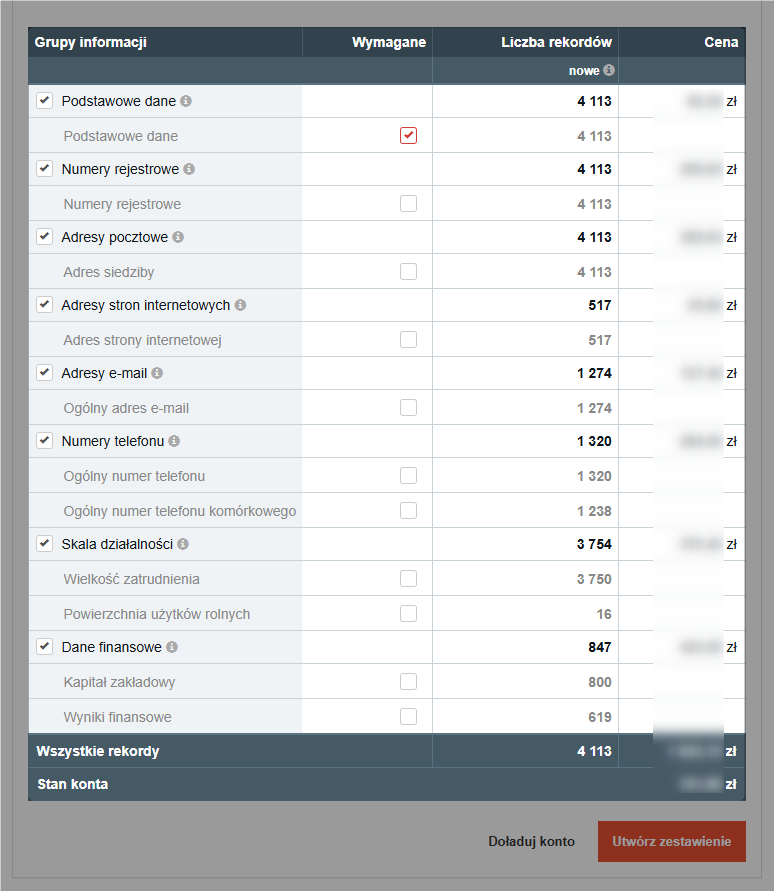
In the information groups table, you can mark specific fields (such as "Email addresses" or "Phone numbers") as "Required."
The system will then reject records for companies that do not have this information, which will automatically lower the final price.
For more information on creating reports, see the guide: How do I create a new report in the database?
Step 4: Payment
The service operates on a prepaid (wallet) basis. To generate the final file, you must have sufficient funds in your account.
- If you already have sufficient funds in your account, click the "Generate Statement" button.
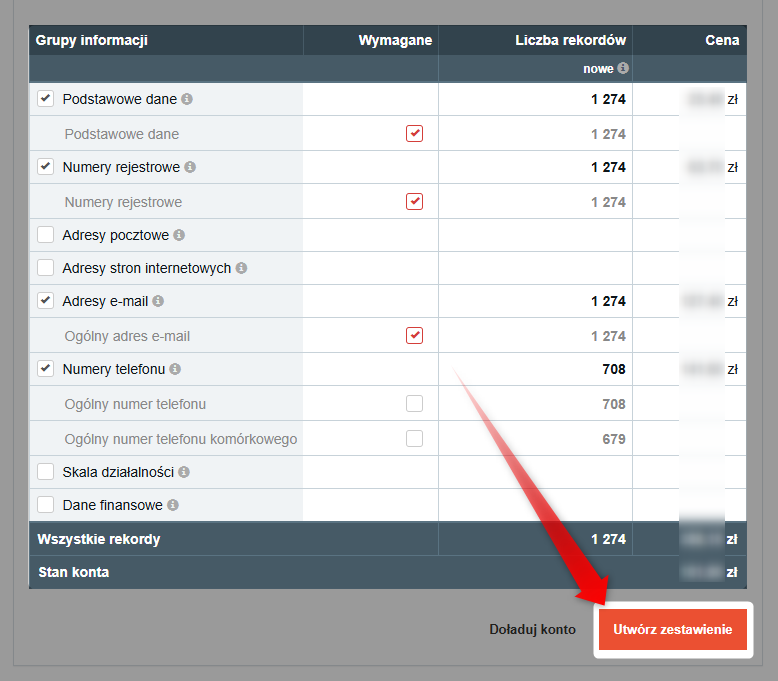
- If your balance is insufficient, click "Top up account." For more information on topping up your account, click here: How do I top up my account on the website?
Step 5: Downloading files
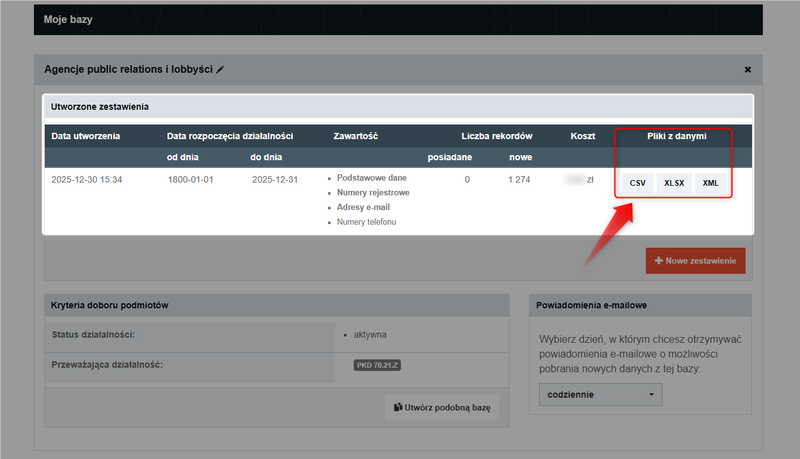
Once you've paid the invoice, the service will generate the data and redirect you to the "My Databases" tab.
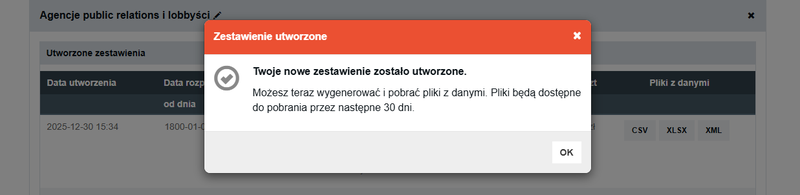
You can download the data in the following formats: CSV, XLSX (Excel), or XML. The files are available for download for 30 days after they are generated.